15 Computer Problems You Can Fix Yourself
Your computer starts acting up, and suddenly you’re staring at a frozen screen or dealing with mysterious error messages. Before you panic and call tech support or rush to the repair shop, take a breath. Most common computer issues have simple solutions that don’t require a computer science degree to figure out.
Here’s a list of 15 computer problems you can tackle on your own, saving both time and money while gaining confidence in handling basic tech troubles.
Slow Computer Performance

When your computer crawls along like it’s moving through molasses, the culprit is often too many programs running simultaneously. Open your Task Manager (Ctrl+Shift+Esc on Windows or Activity Monitor on Mac) — then close unnecessary applications hogging your system’s resources.
Think of it like clearing a traffic jam. Once you remove the bottleneck, everything flows smoothly again.
Frozen Screen or Unresponsive Programs

A frozen screen doesn’t mean your computer is broken forever, though it might feel that way. Try the classic Ctrl+Alt+Delete combination on Windows or Command+Option+Escape on Mac to force-quit stubborn programs.
If that doesn’t work — and sometimes it won’t — hold down your power button for about 10 seconds to restart your machine completely.
Wi-Fi Connection Issues

When your internet decides to take an unscheduled vacation, start with the basics. Restart your router by unplugging it for 30 seconds, then plugging it back in.
On your computer, try forgetting the Wi-Fi network and reconnecting with the password. Sometimes your devices just need a fresh handshake with each other — technology can be finicky like that.
Like Go2Tutors’s content? Follow us on MSN.
Blue Screen of Death on Windows

The infamous blue screen looks scarier than it actually is most of the time. Write down the error code displayed — this part’s important — then restart your computer.
Often, it’s a temporary glitch caused by a driver conflict or memory issue, yet if it keeps happening, that error code will help you search for specific solutions online.
Computer Won’t Turn On

Before assuming the worst, check all your power connections thoroughly. Make sure your power cord is firmly plugged into both the wall outlet and your computer — loose connections are more common than you’d think.
Try a different outlet to rule out electrical issues. For laptops, your battery might be completely drained, so leave it plugged in for at least 30 minutes before attempting to power on.
Overheating and Loud Fan Noise

Computers get hot when they work hard, just like you do during exercise. Clear the dust from your vents using compressed air — dust acts like a blanket, trapping heat inside.
Make sure your computer has proper ventilation. It shouldn’t be sitting on soft surfaces that block airflow, though many people make this mistake.
Like Go2Tutors’s content? Follow us on MSN.
Missing Files or Accidental Deletions

That important document didn’t vanish into thin air, even though it feels like it did. Check your Recycle Bin or Trash first — many ‘lost’ files are just one click away from recovery.
Use your computer’s search function to look for the filename. Files sometimes get saved in unexpected locations, which happens more often than you’d expect.
Software Won’t Install or Update

Installation problems often stem from insufficient storage space or conflicting software — both fixable issues. Free up disk space by deleting unnecessary files, then try running the installer as an administrator.
Sometimes a simple restart clears temporary files that were blocking the installation process, though this seems almost too easy to work.
Audio Problems or No Sound

Silent computers usually have simple fixes, yet people often overlook the obvious ones. Check your volume settings first — it sounds ridiculous, but it’s easily missed.
Make sure your speakers or headphones are properly connected and selected as the default audio device in your sound settings. This step alone solves most audio issues.
Like Go2Tutors’s content? Follow us on MSN.
Keyboard or Mouse Not Working

Unresponsive input devices often just need a reconnection — nothing more complicated than that. For wireless devices, check the batteries and make sure they’re properly paired.
For wired devices, try different USB ports. Sometimes the connection just needs a fresh start, though it’s frustrating when simple things stop working.
Browser Running Slowly or Crashing

Web browsers accumulate digital clutter over time like a messy desk. Clear your browsing history, cookies, and cached files through your browser’s settings menu.
Disable unnecessary extensions that might be slowing things down. They’re like having too many apps running on your phone, yet people rarely think to check them.
Pop-up Ads and Suspicious Behavior

Unwanted pop-ups usually indicate adware has snuck onto your system. Run a full antivirus scan and check your browser extensions for anything suspicious.
Remove any programs you don’t recognize from your installed software list. This process takes time, though it’s worth the effort to clean up your system.
Like Go2Tutors’s content? Follow us on MSN.
External Devices Not Recognized

When your computer ignores your USB drive or external device, try different USB ports first. The device might need specific drivers, which usually download automatically when connected to the internet.
Sometimes unplugging and reconnecting the device several times helps establish the connection. Persistence often pays off with hardware issues.
Printer Connection Problems
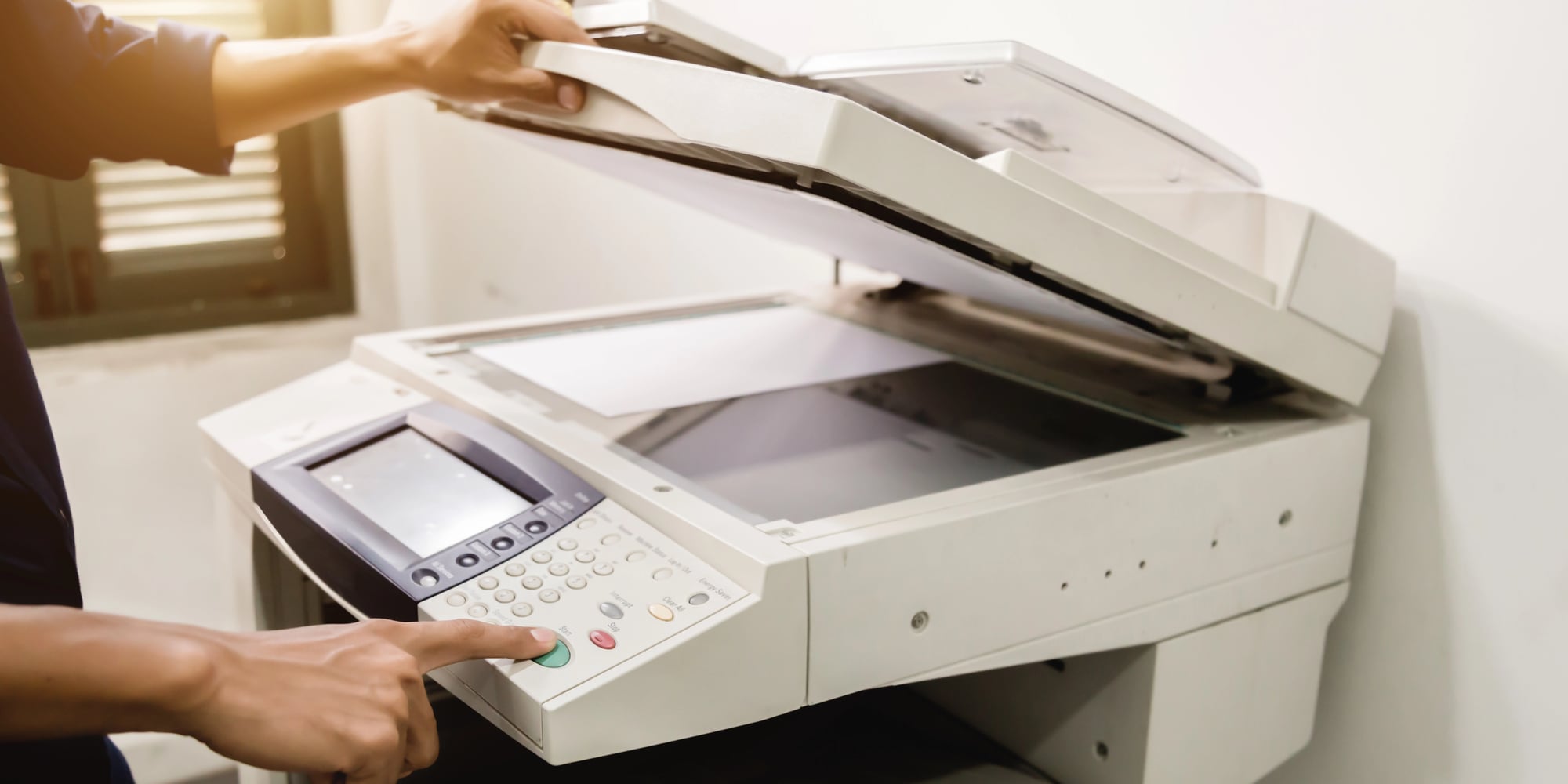
Printer issues often resolve with a simple restart of both your computer and printer. Make sure they’re connected to the same Wi-Fi network for wireless printers.
Check that your printer isn’t out of paper or ink. These basic issues can prevent proper communication, yet they’re frequently overlooked during troubleshooting.
Email Not Working Properly

Email problems frequently trace back to incorrect server settings or password changes. Verify your internet connection first, then check if your email provider has any service outages.
Sometimes removing and re-adding your email account refreshes the connection settings. This step might seem drastic, but it often resolves persistent email issues.
Like Go2Tutors’s content? Follow us on MSN.
Building Your Tech Confidence

These common computer problems don’t require expensive repairs or expert intervention. Most issues resolve with basic troubleshooting steps that anyone can learn.
By tackling these problems yourself, you’ll develop the confidence to handle future tech challenges while saving money on unnecessary service calls. Remember, computers are tools designed to work reliably. When they don’t, the solution is usually simpler than you think.
More from Go2Tutors!

- 18 Unexpectedly Valuable Collectibles You Might Have Lying Around
- 20 Little-Known Historical Battles That Had Huge Consequences
- 20 Historical Artifacts That Scientists Can’t Explain
- 15 Inventions That Were Immediately Banned After Being Created
- 20 Actors Who Were Almost Cast in Iconic Roles
Like Go2Tutors’s content? Follow us on MSN.