15 Ways to Improve Your Alexa Experience with Poor Wi-Fi
Nothing’s more frustrating than asking Alexa a simple question only to hear ‘I’m having trouble connecting to the internet right now.’ Poor Wi-Fi doesn’t have to ruin your smart home experience, though. With a few strategic adjustments and some clever workarounds, you can get your Echo device working smoothly even when your internet connection isn’t exactly blazing fast.
The good news is that most Alexa connectivity issues stem from fixable problems rather than fundamental limitations. Here are 15 practical ways to optimize your Alexa performance when dealing with less-than-perfect Wi-Fi.
Move Your Echo Closer to the Router
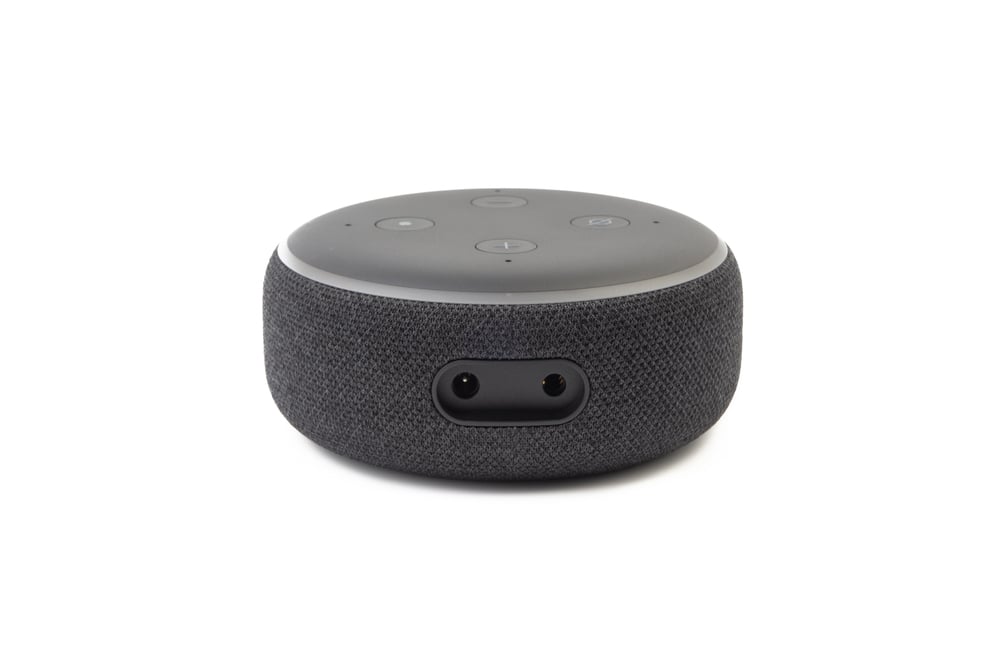
Your Echo device should be within 30 feet of your wireless router for optimal performance. Think of Wi-Fi signals like sound waves – the farther away you get, the weaker they become.
Position your Alexa devices near the router at a distance of 25 feet while keeping the path to the router unobstructed for the best results.
Eliminate Physical Barriers

Physical barriers, like concrete or brick walls, and other electronic devices, like baby monitors and FM radios, can interfere with the signal. Even something as simple as moving your Echo from behind a thick cabinet to an open shelf can make a dramatic difference.
The optimal placement for your Echo device is in an open area, elevated from the floor, and within direct line of sight to your router whenever possible.
Like Go2Tutors’s content? Follow us on MSN.
Switch to the 2.4 GHz Band
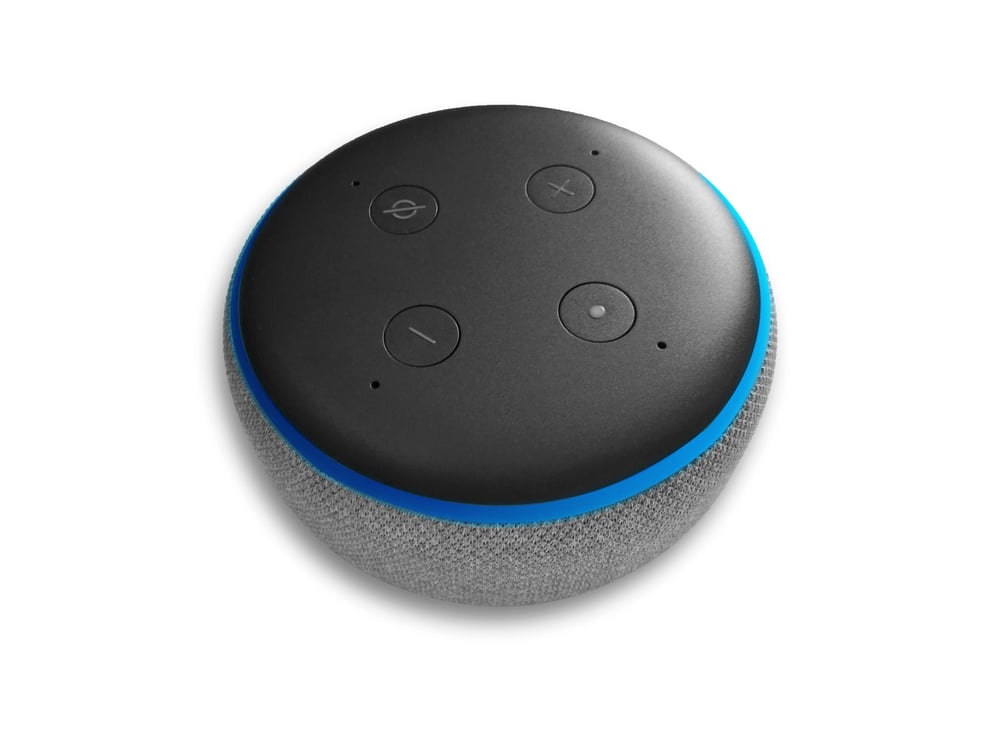
Amazon Echo devices typically work better with the 2.4GHz Wi-Fi band rather than 5GHz when dealing with poor connectivity. The 2.4 GHz band travels farther and penetrates walls better than 5 GHz, making it ideal for weak signal situations.
If you have separate network names, try moving your device from one network to the other to see which performs better in your specific setup.
Restart Your Router Regularly
Unplug both devices, wait 15 seconds, then plug them back in when experiencing connectivity issues. This simple reset clears temporary glitches and refreshes your network connection.
Make it a weekly habit to restart your router during off-peak hours to maintain optimal performance.
Power Cycle Your Echo Device

Turn it completely off using the power button, wait 15 seconds, then turn it back on when Alexa seems sluggish or unresponsive. Sometimes the Echo device itself gets stuck in a loop trying to connect, and a fresh start resolves the issue.
This is particularly effective after router changes or network updates.
Like Go2Tutors’s content? Follow us on MSN.
Reduce Network Congestion

The more devices sharing your home’s bandwidth, the more likely your home connection will slow down. During peak usage times, consider pausing automatic updates, streaming services, or large downloads on other devices.
Think of your bandwidth like a highway – fewer cars mean everyone moves faster.
Minimize Interference from Other Devices

Set devices including baby monitors, microwaves and garage door openers to operate on channels that don’t conflict with your Wi-Fi. These household items can create electromagnetic interference that disrupts your Echo’s connection.
Keep your Echo at least three feet away from microwaves and other potential interference sources.
Update Your Router’s Firmware

Outdated router firmware can cause compatibility issues and poor performance with newer devices. Check your router manufacturer’s website for firmware updates at least once every few months.
Modern firmware often includes improvements specifically designed to handle smart home devices more efficiently.
Like Go2Tutors’s content? Follow us on MSN.
Use Quality of Service Settings
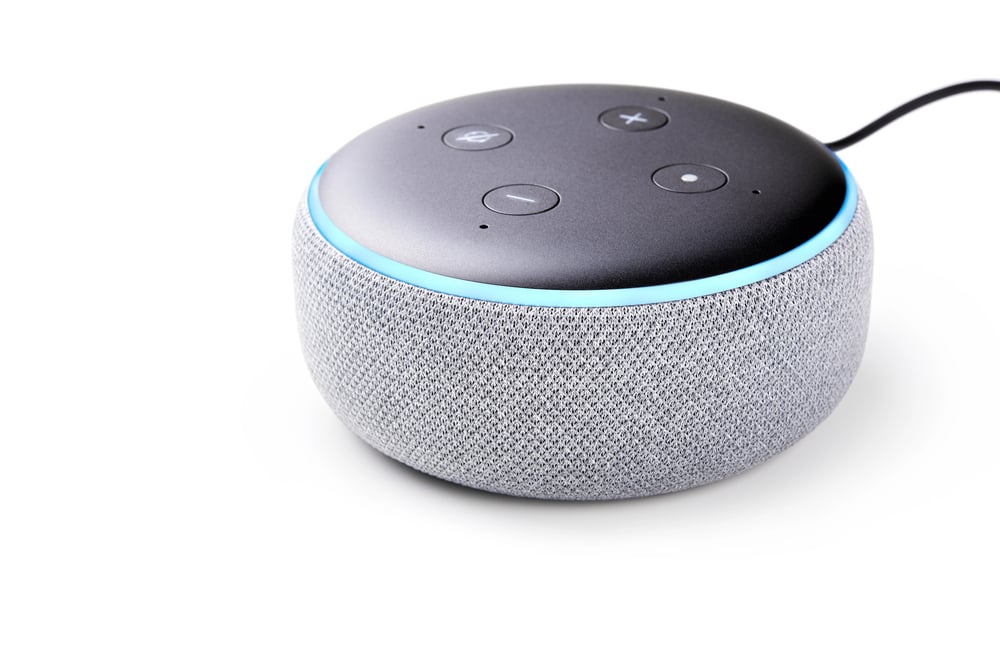
Most modern routers include Quality of Service features that let you prioritize specific devices or types of traffic. Set your Echo devices as high-priority to ensure they get sufficient bandwidth even when other devices are competing for connection.
This is like giving Alexa a VIP pass to your internet highway.
Clear Saved Network Settings

Remove all saved Wi-Fi networks from the Alexa application followed by a factory reset installation and new setup of the device when experiencing persistent connection problems. Old network configurations can sometimes conflict with current settings, creating mysterious connectivity issues that disappear with a fresh start.
Position Your Router Centrally

Try moving the Wi-Fi router to the most central location in your home to improve signal distribution throughout your space. Routers tucked away in closets or corners create dead zones where your Echo might struggle to maintain connection.
An elevated, central position gives your signal the best chance to reach every corner of your home.
Like Go2Tutors’s content? Follow us on MSN.
Check for Network Name Conflicts
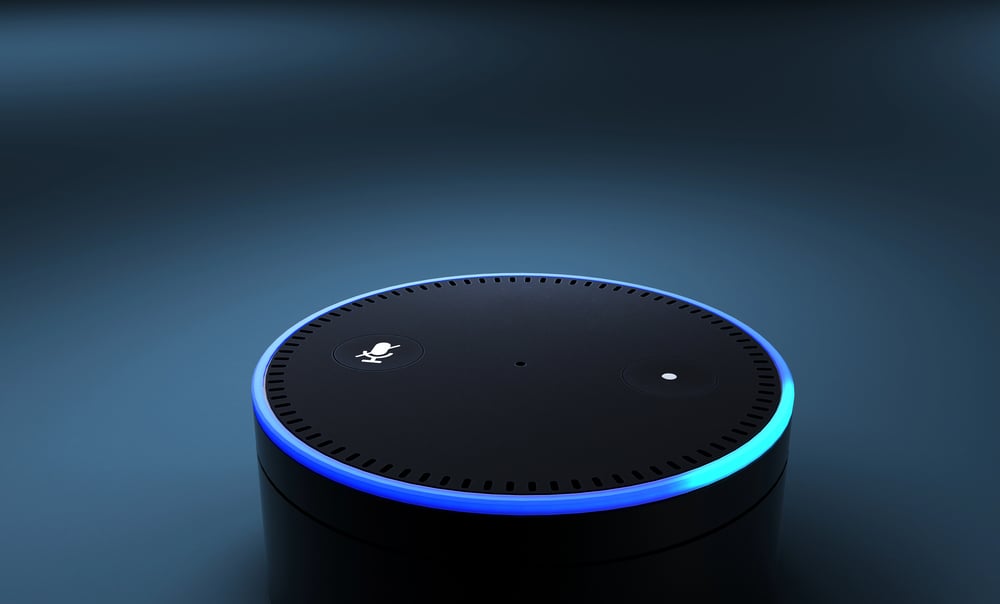
Some routers automatically combine 2.4 GHz and 5 GHz bands under the same network name, which can confuse Echo devices. Split these into separate network names so you can manually connect your Echo to the band that works best in your environment.
This gives you more control over your device’s connectivity.
Adjust Your Router’s Channel
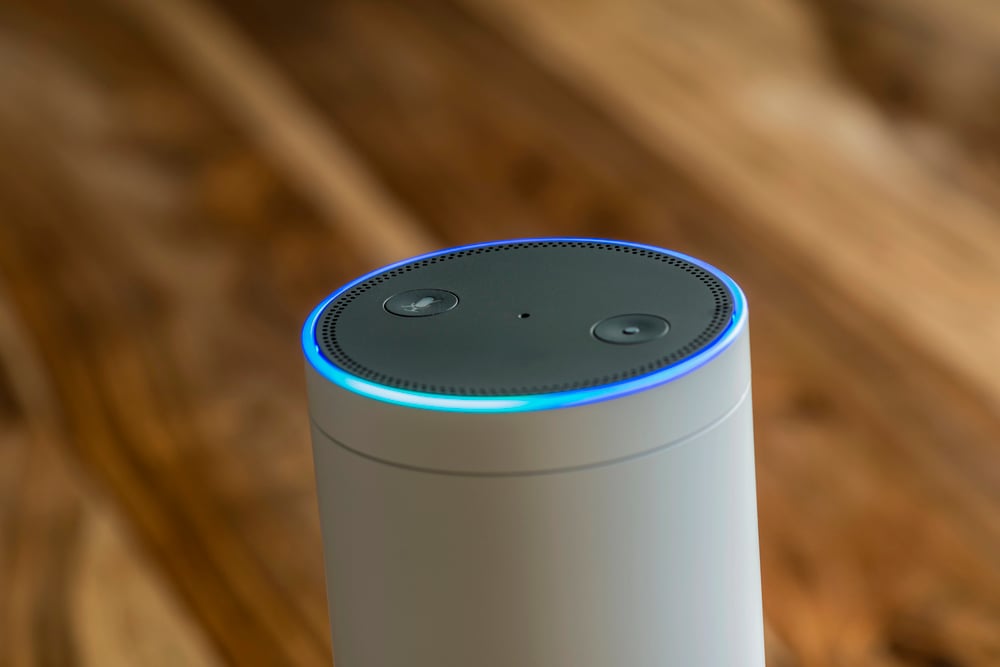
Wi-Fi channels can become overcrowded, especially in apartment buildings or dense neighborhoods. Use your router’s admin panel to switch to a less congested channel – channels 1, 6, and 11 are typically the best options for 2.4 GHz networks.
Think of it like changing radio stations to find one with clearer reception.
Enable Band Steering Carefully
Some routers have band steering features that automatically move devices between 2.4 GHz and 5 GHz bands. While this sounds helpful, it can actually cause connection drops with Echo devices.
Consider disabling this feature and manually managing which band your Alexa uses for more stable performance.
Like Go2Tutors’s content? Follow us on MSN.
Use Alexa’s Built-in Network Tools

Some things that you can ask Alexa to do include checking the software for updates, getting more information about your network, restarting your network, or even pausing WiFi connection for specific devices. Many users don’t realize Alexa can help diagnose its own connectivity issues through voice commands, making troubleshooting much more convenient.
The Connected Home Reality
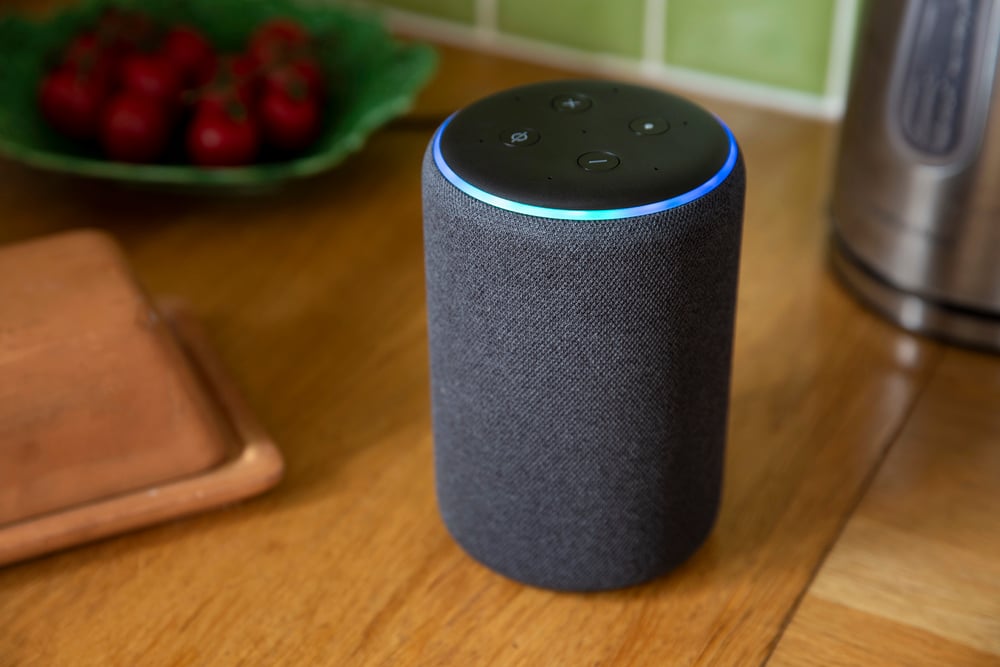
Poor Wi-Fi doesn’t have to mean a poor smart home experience. You can actually do so by connecting your Amazon Echo and Eero devices to extend your network coverage, and most connectivity issues come down to simple placement and configuration problems rather than fundamental internet speed limitations.
Today’s Echo devices are designed to work efficiently even on modest connections, so with the right setup tweaks, you can enjoy responsive voice control regardless of your internet provider’s shortcomings. The key is understanding that Alexa needs consistency more than raw speed – a stable, well-configured network beats a fast but unreliable one every time.
More from Go2Tutors!

- 16 Historical Figures Who Were Nothing Like You Think
- 12 Things Sold in the 80s That Are Now Illegal
- 15 VHS Tapes That Could Be Worth Thousands
- 17 Historical “What Ifs” That Would Have Changed Everything
- 18 TV Shows That Vanished Without a Finale
Like Go2Tutors’s content? Follow us on MSN.