Keyboard Shortcuts You Didn’t Know
Most people use computers every single day but only know a handful of keyboard shortcuts like copy, paste, and maybe undo. The mouse gets all the action while dozens of useful key combinations sit there unused, waiting to make life easier.
Learning just a few more shortcuts can shave minutes off daily tasks and make working on a computer feel smoother and less frustrating. Here are some incredibly useful keyboard shortcuts that most people have never discovered, even after years of computer use.
Windows Key Plus Period Brings Up Emojis

Pressing the Windows key and the period at the same time opens an emoji picker right where the cursor sits. This works in any program on Windows 10 and 11, from emails to documents to chat apps.
No more searching online for emoji websites or trying to remember alt codes. The picker also includes symbols, kaomoji faces, and GIFs in newer versions of Windows.
Mac users get the same feature by pressing Control, Command, and Space together.
Ctrl Plus Shift Plus T Reopens Closed Tabs

Accidentally closing a browser tab happens to everyone, and frantically searching through history to find it wastes precious time. Pressing Ctrl, Shift, and T together instantly brings back the last closed tab exactly where it was.
Keep pressing the combination to bring back multiple closed tabs in reverse order. This works in Chrome, Firefox, Edge, and most other browsers.
The shortcut has saved countless people from losing important research or articles they meant to read later.
Alt Plus Tab Switches Between Open Windows

Holding down Alt and tapping Tab brings up a preview of all open windows and programs. Keep tapping Tab while holding Alt to cycle through everything running on the computer.
Release both keys when hovering over the desired window to switch to it instantly. This beats minimizing windows or clicking around the taskbar trying to find the right program.
Windows users rely on this shortcut so much that it becomes automatic after a while.
Ctrl Plus L Highlights The Address Bar

Clicking into the browser address bar with a mouse takes more effort than it should. Pressing Ctrl and L together instantly selects everything in the address bar, ready for typing a new URL.
This works in virtually every web browser available. The shortcut saves the awkward mouse movement to the top of the screen and the careful clicking into the narrow bar.
People who learn this one never go back to clicking.
Windows Key Plus V Opens Clipboard History
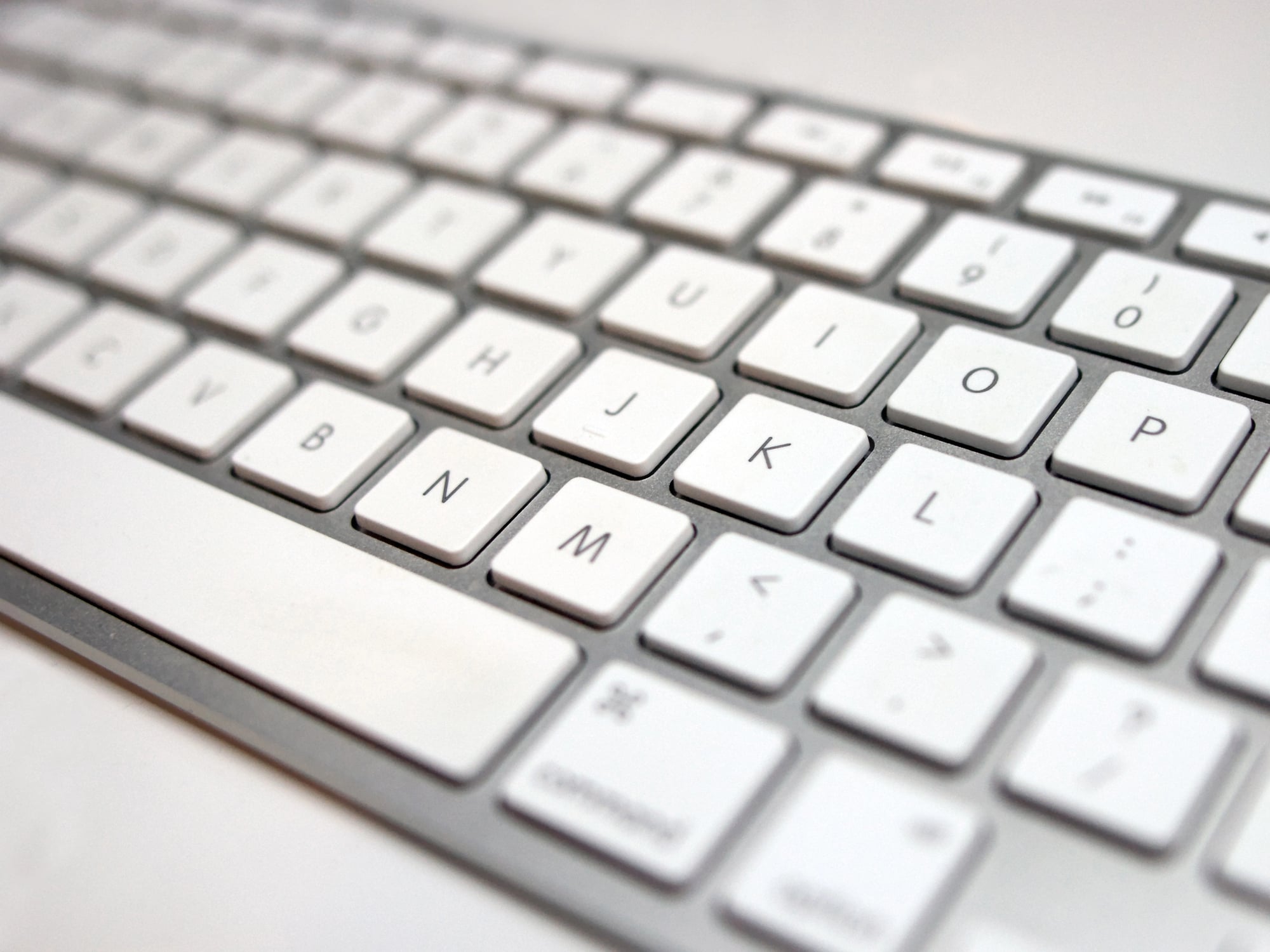
Windows 10 and 11 keep a history of everything copied recently, not just the last item. Pressing the Windows key and V together opens a panel showing the last 25 copied items.
Click any of them to paste that specific item, even if it was copied hours ago. This feature needs to be enabled first in Settings under Clipboard, but once activated it changes how people work with copied content.
No more copying something important only to lose it by copying something else.
Ctrl Plus Arrow Keys Jump Between Words

Holding Ctrl while pressing left or right arrows moves the cursor by entire words instead of one letter at a time. This makes editing text much faster than holding the arrow key and waiting for the cursor to crawl.
Add Shift to the combination to select whole words while jumping. The shortcut works in word processors, text editors, browsers, and basically anywhere text can be typed.
Editing mistakes in long sentences becomes way less tedious.
Ctrl Plus Backspace Deletes Entire Words

Pressing Ctrl and Backspace together erases the whole word to the left of the cursor in one shot. This beats hammering the backspace key repeatedly to delete a misspelled word letter by letter.
The shortcut works in the opposite direction too with Ctrl and Delete removing the word to the right. Writers and anyone who types a lot can fix mistakes in a fraction of the time.
The combination feels awkward at first but becomes second nature quickly.
F2 Renames Files Instantly
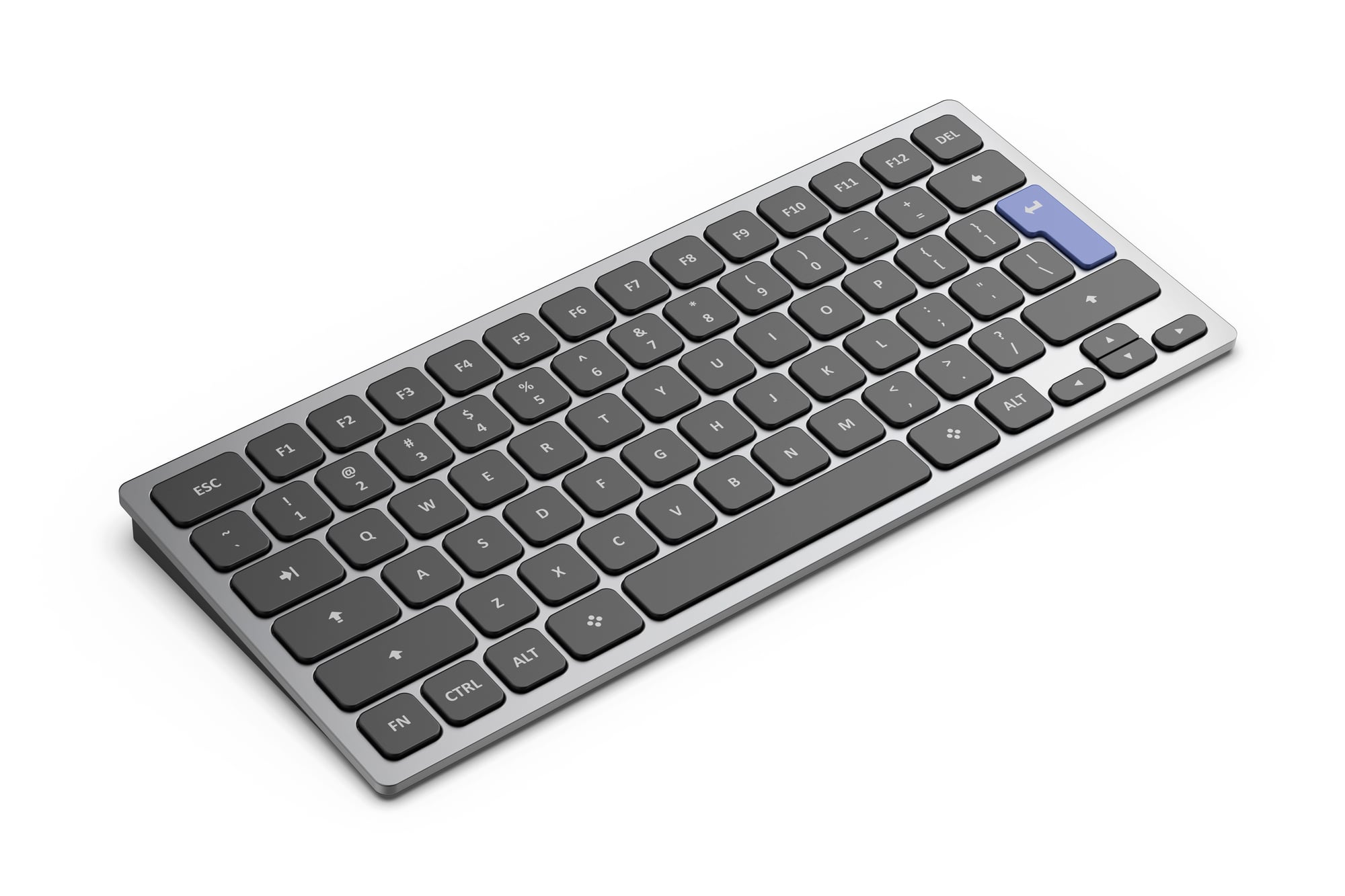
Selecting a file and pressing F2 highlights the filename and makes it ready to edit without any right-clicking or menu navigation. This works in Windows File Explorer and on the desktop.
Type the new name and press Enter to finish renaming. The shortcut eliminates several steps from what should be a simple task.
People who organize lots of files save significant time once they learn this one.
Ctrl Plus Shift Plus Esc Opens Task Manager Directly

Most people know Ctrl, Alt, Delete brings up a security screen with Task Manager as an option. Pressing Ctrl, Shift, and Esc together skips that screen and opens Task Manager immediately.
This matters when a program freezes and needs to be force-closed right away. The shortcut also works when the computer is running slowly and the cause needs to be identified quickly.
One less click might not seem important until dealing with a frozen computer that barely responds.
Windows Key Plus Numbers Open Taskbar Programs

The Windows key combined with number keys 1 through 9 launches or switches to programs pinned to the taskbar. Windows key plus 1 opens the first pinned app, 2 opens the second, and so on.
This allows starting frequently used programs without touching the mouse at all. People who arrange their taskbar thoughtfully can access their main programs faster than clicking.
The shortcut turns the taskbar into a keyboard-accessible quick launch bar.
Ctrl Plus Shift Plus N Creates A New Folder

Creating a new folder normally requires right-clicking empty space, hovering over New, then clicking Folder. Pressing Ctrl, Shift, and N together does all of that in one motion.
The new folder appears instantly with its name highlighted and ready to be typed. This shortcut speeds up file organization considerably.
Anyone who creates folders regularly saves a surprising amount of time over weeks and months.
F11 Toggles Fullscreen In Browsers

Pressing F11 in any web browser hides all the toolbars, tabs, and interface elements to show only the webpage content. The page expands to fill the entire screen, perfect for reading articles or watching videos without distractions.
Press F11 again to bring back all the browser controls. This works for presentations too, making shared screens look cleaner and more professional.
The simplicity of one key to transform the viewing experience makes it weirdly satisfying.
Ctrl Plus Plus And Minus Zoom In And Out
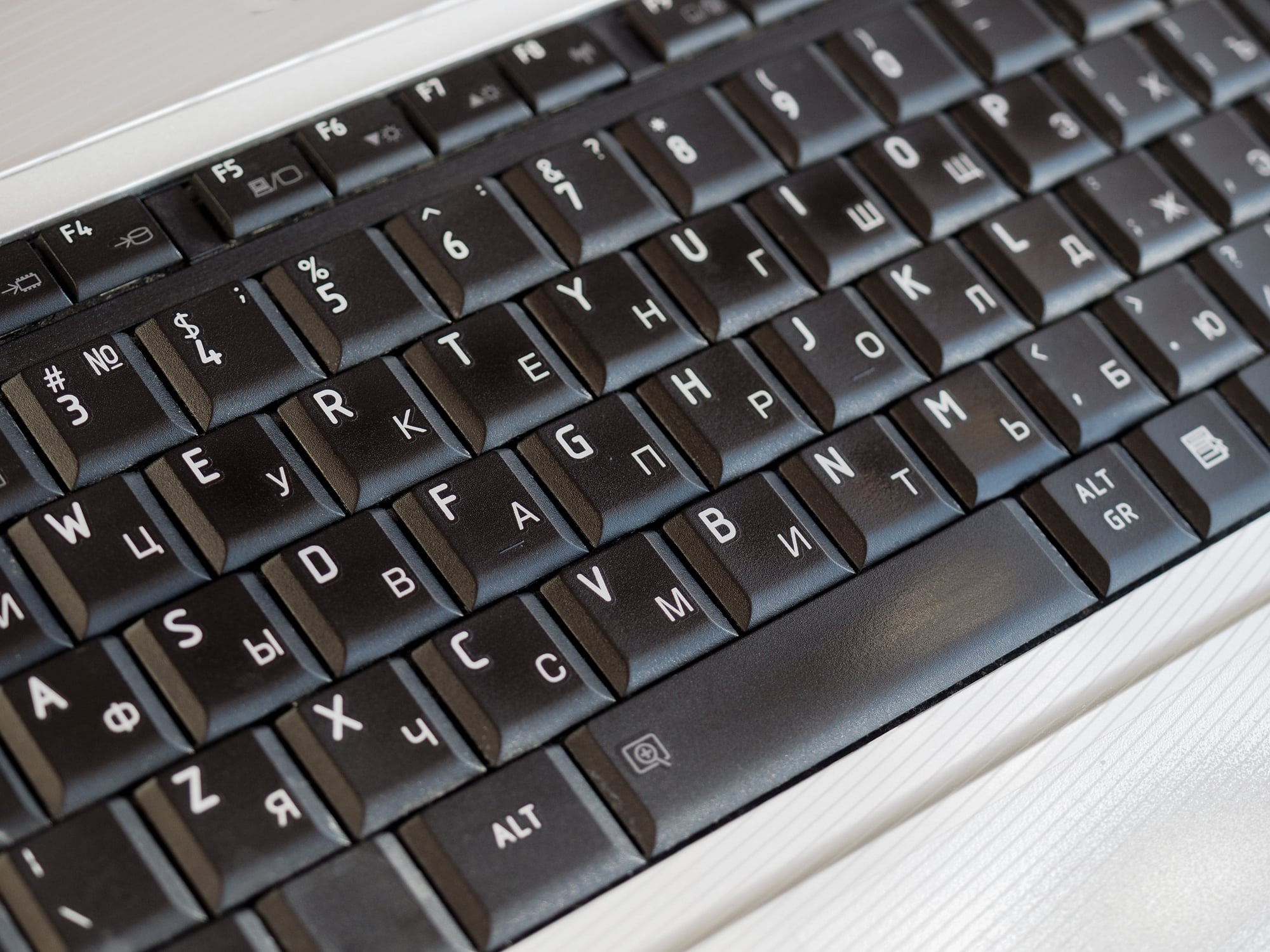
Holding Ctrl and pressing the plus or minus keys zooms in or out on whatever is displayed. This works in browsers, PDF readers, photo viewers, and many other programs.
Ctrl and 0 resets the zoom back to 100 percent. People with vision issues use this constantly, but everyone benefits when websites use tiny text.
The mouse scroll wheel does the same thing while holding Ctrl, giving two options for the same result.
Alt Plus F4 Closes The Active Window

Pressing Alt and F4 together closes whatever window currently has focus. This works for any program and saves reaching for the X button in the corner.
Holding Alt and tapping F4 repeatedly closes multiple windows quickly. Using it with no windows open brings up the shutdown menu.
The shortcut provides a faster way to clean up a cluttered desktop full of open programs.
Windows Key Plus Shift Plus S Captures Screenshots

This combination opens the Snipping Tool overlay that lets users select exactly what part of the screen to capture. Draw a rectangle around the area needed and it copies to the clipboard automatically.
The captured image can then be pasted into emails, documents, or chat messages. This beats the old Print Screen method that captured everything and required cropping.
Windows made this shortcut standard in recent versions, and it has become the go-to screenshot method.
Ctl Plus H Opens Browser History

Hitting Ctrl plus H brings up your browsing history, either in a fresh tab or a side panel – depending on which browser you’re using. Instead of digging through menus, this gets you there right away.
Most times, there’s a search bar built in, helpful when tracking down something seen long before yesterday. Folks who often lose links they meant to save rely on this trick every day.
Just two keys change what used to take several clicks into nearly instant recall.
Tab Moves Between Clickable Elements

Hitting Tab shifts focus to the next interactive part – like a button, link, or input spot – on a page or app. Without lifting fingers from the keys, users move smoothly between spots that need attention.
Pressing Shift along with Tab reverses direction, stepping back instead of forward. Designers plan for this flow, even if some forget to make it work right.
For those who find mouse use tough, this method opens access; others simply save time by staying on the keyboard. The rhythm stays steady: one tap at a time, moving through options.
Small Shortcuts Create Big Efficiency Gains

At first glance, learning keyboard shortcuts seems pointless, almost like studying random facts. Yet those seconds saved here and there pile up quicker than anyone might guess.
Moving to the mouse again and again every hour? It causes little hiccups – enough to scatter focus and drag things out. Staying on the keys means less shifting around, letting ideas move naturally between actions.
This collection covers only a slice of what software can do, still picking up even two or three changes how it all feels – sharper, calmer. Each one picked up acts like a quiet upgrade, returning moments back over months, over years.
More from Go2Tutors!

- The Romanov Crown Jewels and Their Tragic Fate
- 13 Historical Mysteries That Science Still Can’t Solve
- Famous Hoaxes That Fooled the World for Years
- 15 Child Stars with Tragic Adult Lives
- 16 Famous Jewelry Pieces in History
Like Go2Tutors’s content? Follow us on MSN.