15 Computer Shortcuts That Save Time Daily
Most people spend hours each day clicking through menus and navigating with their mouse, though there’s a faster way to get things done. Computer shortcuts can transform your daily workflow from sluggish to lightning-fast, whether you’re writing emails, managing files, or browsing the web.
Here are 15 computer shortcuts that will save you time every single day.
Ctrl+C and Ctrl+V
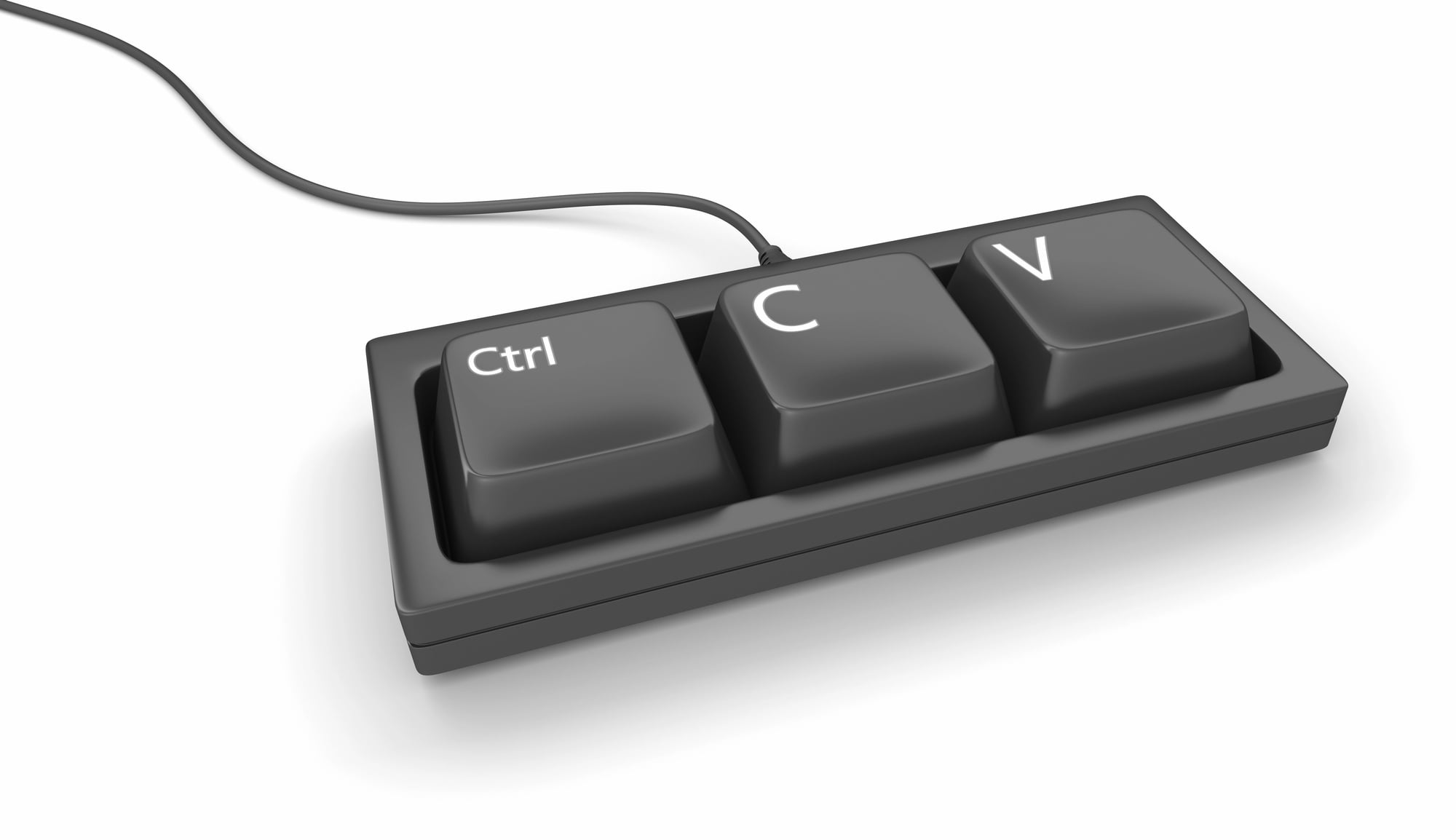
Copy and paste might seem basic — yet they’re the foundation of efficient computer work. Rather than right-clicking and selecting from a menu, these shortcuts let you duplicate text, images, or files instantly.
Copy something from one document and paste it into another without breaking your flow.
Ctrl+Z

The undo command serves as your safety net when mistakes happen. Whether you accidentally delete a paragraph or move a file to the wrong folder, Ctrl+Z brings everything back to the previous state.
It’s like having a time machine that goes back one step at a time.
Alt+Tab

Switching between open programs becomes effortless with this shortcut. Instead of clicking on taskbar icons or minimizing windows — Alt+Tab shows you all your open applications in a neat grid.
Hold Alt and tap Tab to cycle through them until you find what you need.
Ctrl+F

Finding specific text in a document or webpage used to mean scrolling through everything manually. Ctrl+F opens a search box that instantly highlights every instance of your search term.
This works in browsers, Word documents, PDFs — plus most other programs.
Ctrl+S

Saving your work should become second nature, while this shortcut makes it automatic. Rather than going to File menu and clicking Save, Ctrl+S does it instantly.
Your fingers will learn to hit this combination every few minutes without thinking about it.
Windows+L

Locking your computer when you step away protects your privacy and security. This shortcut instantly brings up the lock screen — requiring your password to get back in.
Much faster than clicking through the Start menu or waiting for a screensaver.
Ctrl+Shift+T

Accidentally closing a browser tab happens to everyone, though this shortcut brings it right back. Ctrl+Shift+T reopens the most recently closed tab with all its history intact.
Use it multiple times to restore several closed tabs in reverse order.
Ctrl+T

Opening a new browser tab is something you probably do dozens of times per day. This shortcut creates a fresh tab instantly — ready for your next search or website visit.
It keeps your current page open while giving you a clean slate to work with.
Alt+F4
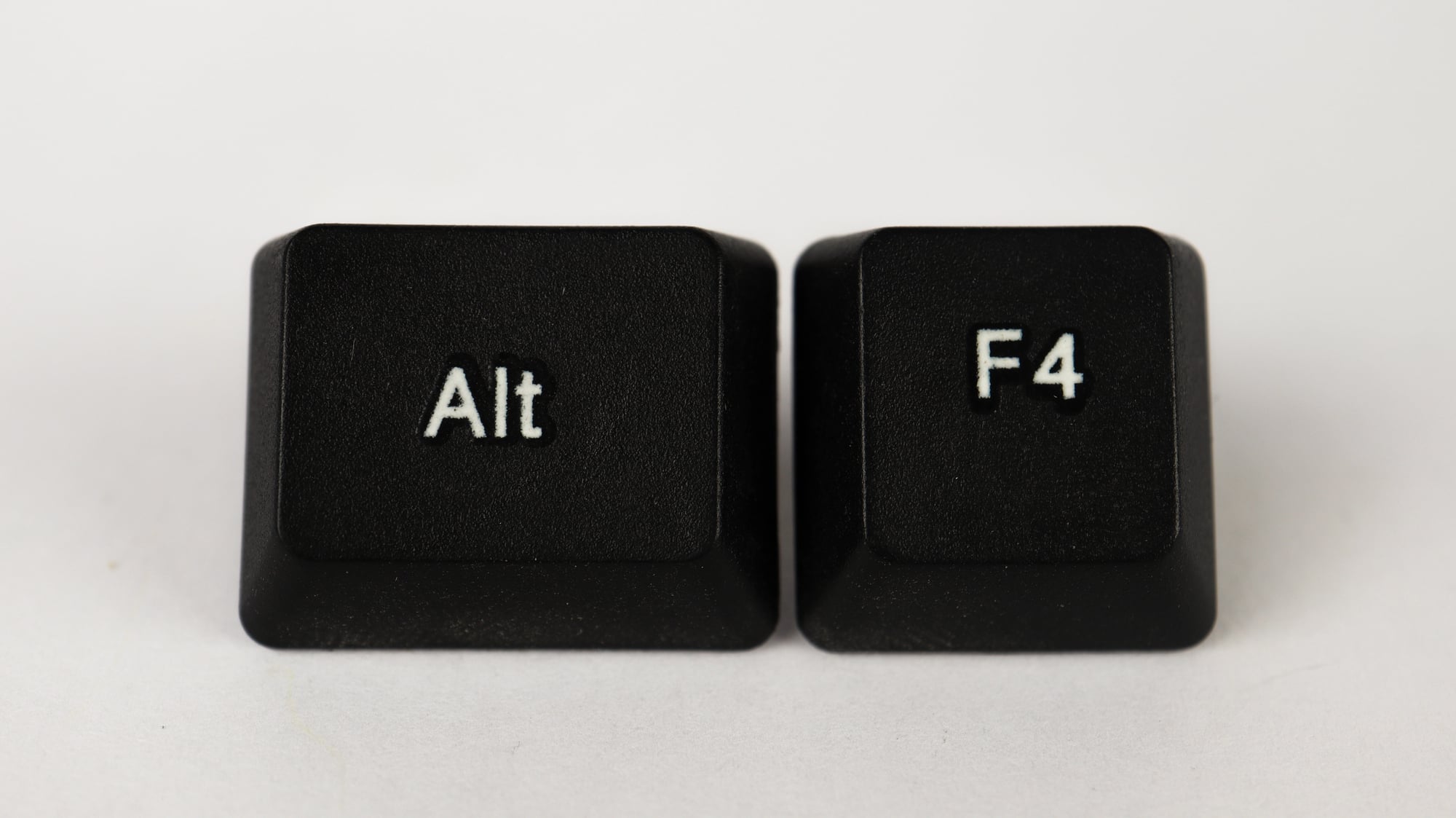
Closing programs completely differs from just minimizing them. Alt+F4 shuts down whatever application you’re currently using — freeing up system resources.
Like turning off a light when you leave a room instead of just dimming it.
Ctrl+A

Selecting everything in a document or folder saves you from dragging your mouse across huge amounts of content. This shortcut highlights all text in a document or all files in a folder instantly.
Particularly useful when you need to copy entire documents or move multiple files at once.
Ctrl+Home and Ctrl+End

Jumping to the beginning or end of long documents eliminates tedious scrolling. Ctrl+Home takes you to the very top, whereas Ctrl+End brings you to the bottom.
These shortcuts prove invaluable when working with lengthy reports or web pages.
Windows+D

Minimizing all your open windows at once clears your desktop instantly. This shortcut works perfectly when you need to access files on your desktop or when your boss walks by and you want to look busy.
Press it again to restore all your windows exactly as they were.
Ctrl+Shift+N

Creating new folders while organizing files becomes much faster with this shortcut. Instead of right-clicking and navigating through context menus, Ctrl+Shift+N creates a new folder immediately.
Then you can type its name right away and start organizing your files.
F2

Renaming files and folders is something most people do by right-clicking and selecting rename. The F2 key accomplishes this instantly, highlighting the current name so you can type a new one immediately.
This works for files, folders, and even shortcuts on your desktop.
Ctrl+Shift+Esc
Opening Task Manager directly saves time when your computer starts acting sluggish. This shortcut bypasses the Ctrl+Alt+Delete screen and takes you straight to Task Manager.
From there, you can see which programs are using too much memory or CPU and close them if needed.
Building Better Computing Habits

These keyboard combinations might feel awkward at first, yet they become muscle memory with practice. Start with the ones you’ll use most often, like copy and paste or Alt+Tab for switching programs.
Once those feel natural, gradually add more shortcuts to your routine. Soon navigating your computer becomes as smooth as driving a familiar route home.
More from Go2Tutors!

- The Romanov Crown Jewels and Their Tragic Fate
- 13 Historical Mysteries That Science Still Can’t Solve
- Famous Hoaxes That Fooled the World for Years
- 15 Child Stars with Tragic Adult Lives
- 16 Famous Jewelry Pieces in History
Like Go2Tutors’s content? Follow us on MSN.