15 Tech Features We Rarely Notice
Most people use their phones, laptops, and apps for years without stumbling across features that were quietly built in from the start. These aren’t hidden in some obscure settings menu — they’re just easy to miss when everything works well enough that you never go looking.
Some of them save time. Others protect you in ways you didn’t know you needed.
All of them are worth knowing about.
The Auto-Correct Undo Trick

When your phone autocorrects a word and you hate what it changed it to, you don’t have to backspace and retype everything. On most smartphones, tapping the autocorrected word immediately after it appears brings up a small bubble showing the original word you typed.
One tap puts it back. It’s been there for years.
Almost nobody uses it.
Browser Reading Mode
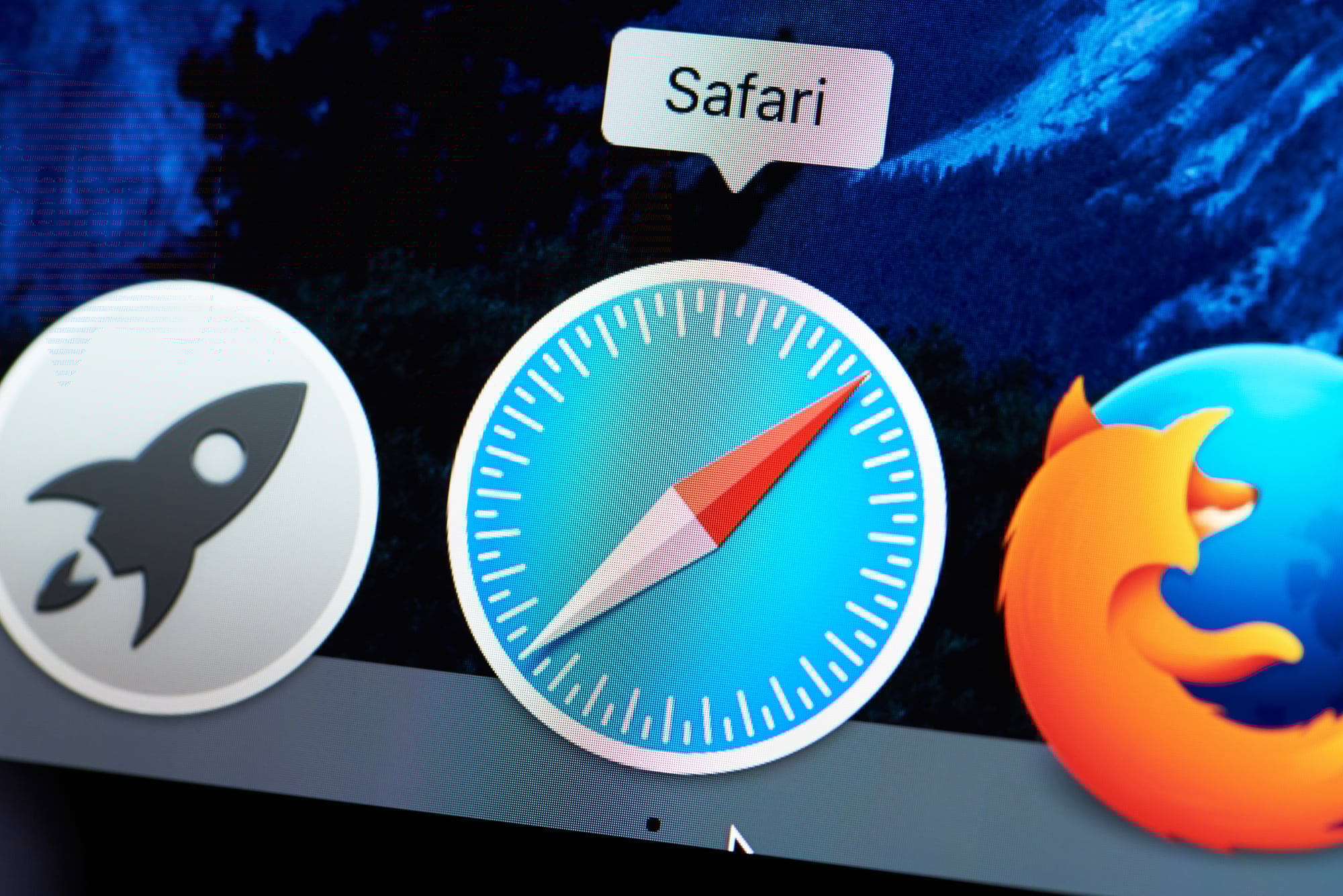
Every major browser has a reading mode that strips away ads, popups, sidebars, and everything else cluttering an article. On Safari, there’s a small icon in the address bar.
Firefox has one too. It reformats the page into clean text with a font and background color you can adjust.
If you spend time reading long articles online, this changes how comfortable that experience feels.
Night Mode On Your Router

Some home routers have a built-in schedule that lets you turn off Wi-Fi at certain hours. Parents sometimes use this to limit screen time at night.
Others just use it so there’s no temptation to check anything before bed. You find it buried in the router’s admin settings — usually accessible by typing your router’s IP address into a browser.
Clipboard History

Windows has a clipboard history feature that stores everything you’ve recently copied. Press Windows + V and a panel opens with your last several copied items — text, links, images.
You can pin things you need to paste repeatedly. It’s off by default, which is why most people never know it’s there.
Turn it on in Settings under System > Clipboard.
Mac users can get the same functionality through third-party tools, since macOS doesn’t include it natively.
The Shake-to-Undo Gesture
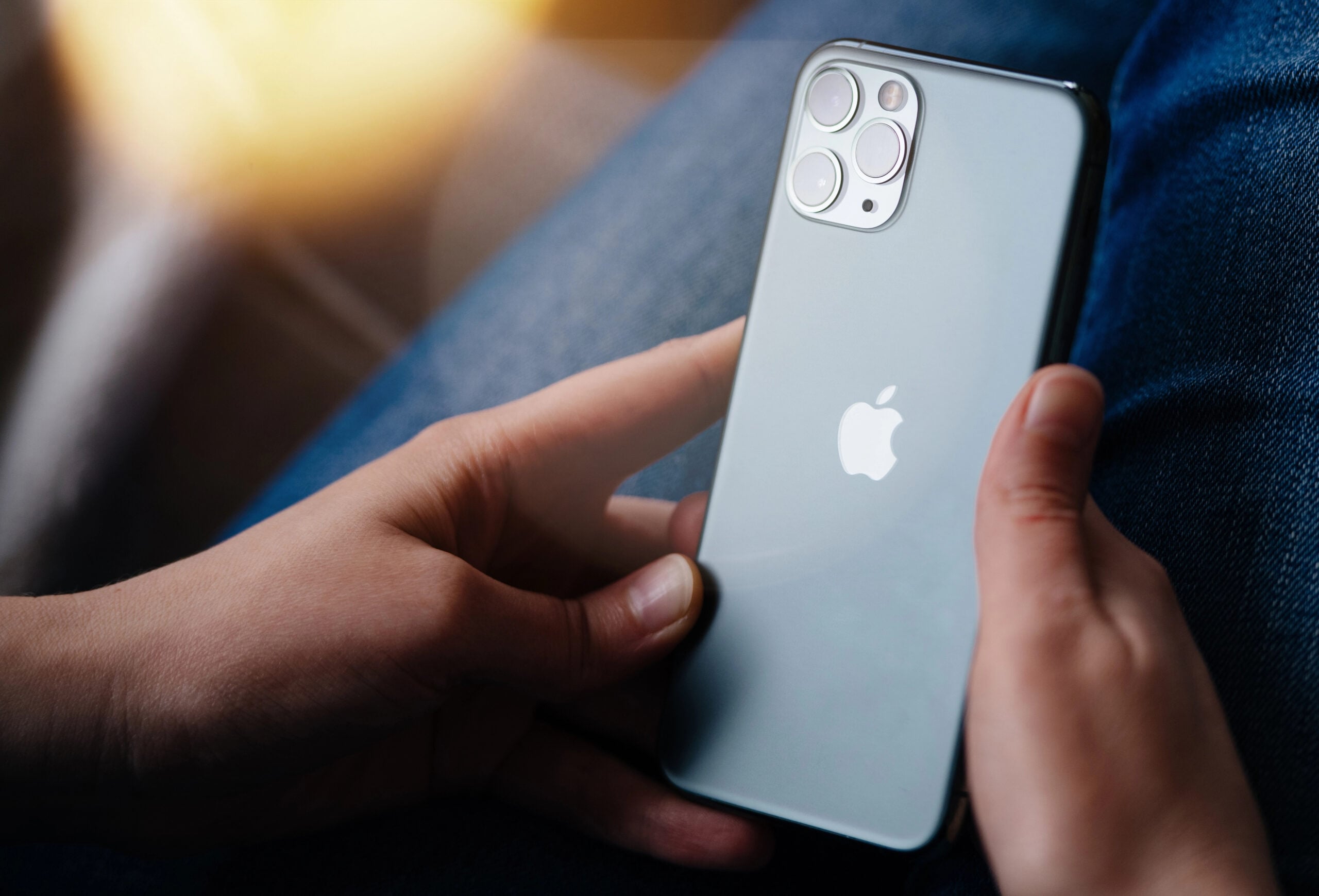
On iPhones, physically shaking the device triggers an undo action. Delete a long block of text by accident? Shake the phone and a dialog box appears asking if you want to undo.
It works across apps — Notes, Messages, Mail, most text fields. Shaking again after an undo will redo the action.
It sounds strange and it is, but it works reliably.
Screenshot Scrolling
Taking a screenshot of a long webpage or document normally captures only what’s visible on screen. But many phones — particularly Samsung Android devices — offer a “scroll capture” option that appears right after you take a screenshot.
Tap it and the phone automatically scrolls and stitches the full page into a single tall image. Some third-party apps bring this to other Android phones too.
Live Captions
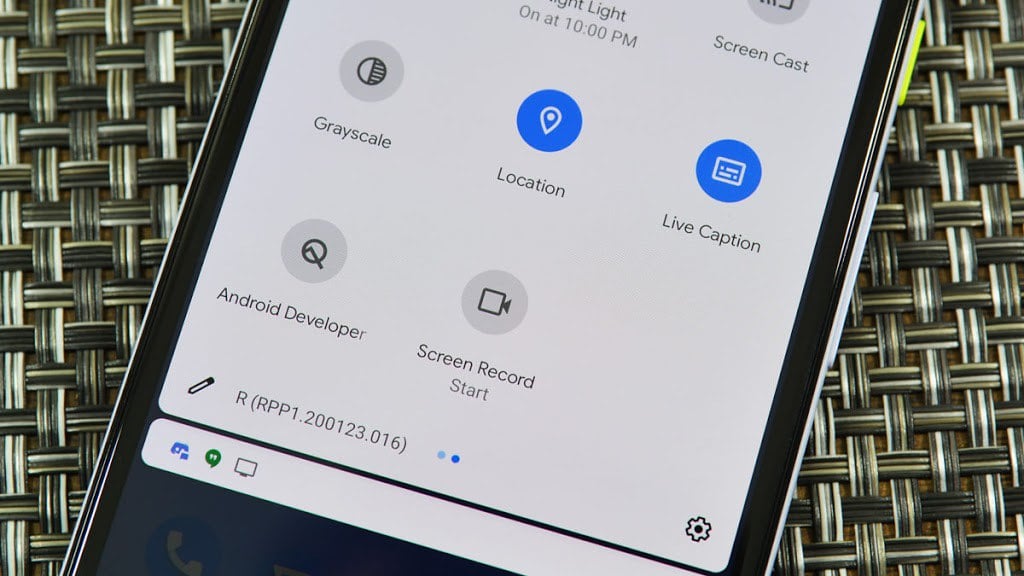
Android and some Chromebook devices have a feature called Live Caption that transcribes any audio playing on your device in real time — videos, podcasts, voice memos, phone calls. It runs entirely on-device, meaning nothing gets sent to a server.
The accuracy is surprisingly good. You find it under Accessibility in Settings, and once turned on, a small caption bar appears whenever audio is detected.
Keyboard Cursor Control
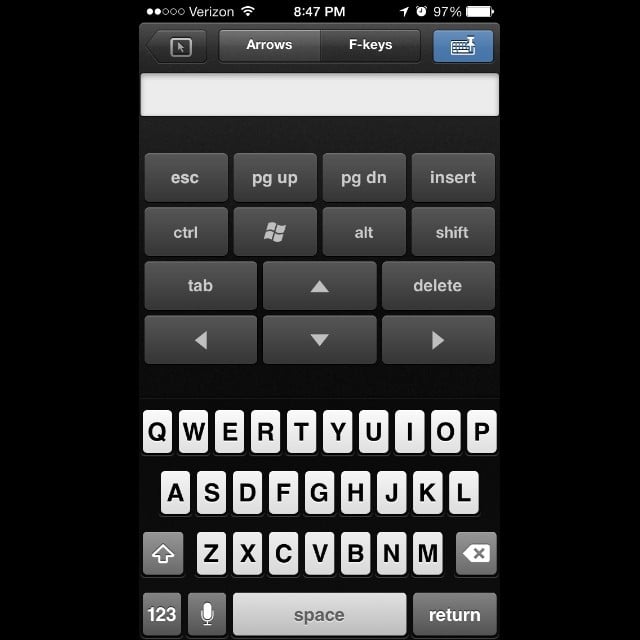
On iPhone, pressing and holding the spacebar on the keyboard turns the entire keyboard into a trackpad. You can then drag your finger around to precisely position the text cursor anywhere in a document.
Trying to tap exactly between two letters in a dense block of text is otherwise frustrating. This solves that problem completely.
Android keyboards offer something similar, though the exact gesture varies by keyboard app.
Smart Invert For Images
iPhones have two dark mode options: regular Dark Mode and Smart Invert. The difference matters. Regular Dark Mode sometimes leaves images and video looking washed out or inverted because it applies the effect universally.
Smart Invert skips photos, videos, and apps that have their own dark themes, inverting only interface elements. People who use dark mode for eye comfort often prefer Smart Invert once they discover it.
Back Tap
iPhones running iOS 14 and later have a feature called Back Tap, found under Accessibility > Touch. It lets you assign actions to a double or triple tap on the back of the phone.
You can set it to take a screenshot, open the app switcher, trigger a shortcut, scroll up or down, or activate the flashlight. It sounds gimmicky until you find a use for it that fits how you actually use your phone.
Focus Modes Beyond Do Not Disturb
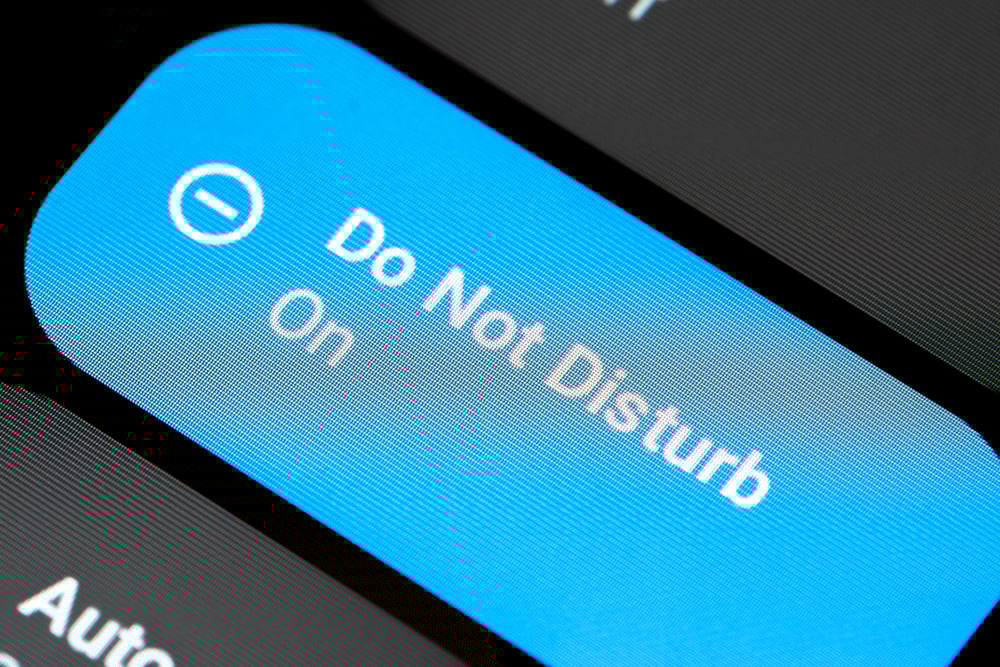
Most people know about Do Not Disturb. Fewer people use the broader Focus system on iOS and Android. Focus lets you create custom notification filters tied to specific activities — Work, Sleep, Reading, Driving.
Each mode can allow only certain contacts or apps to send alerts. Your home screen can even show a different set of apps depending on which Focus is active.
It takes a few minutes to configure, but it genuinely reduces the feeling of constant interruption.
Battery Charge Limits
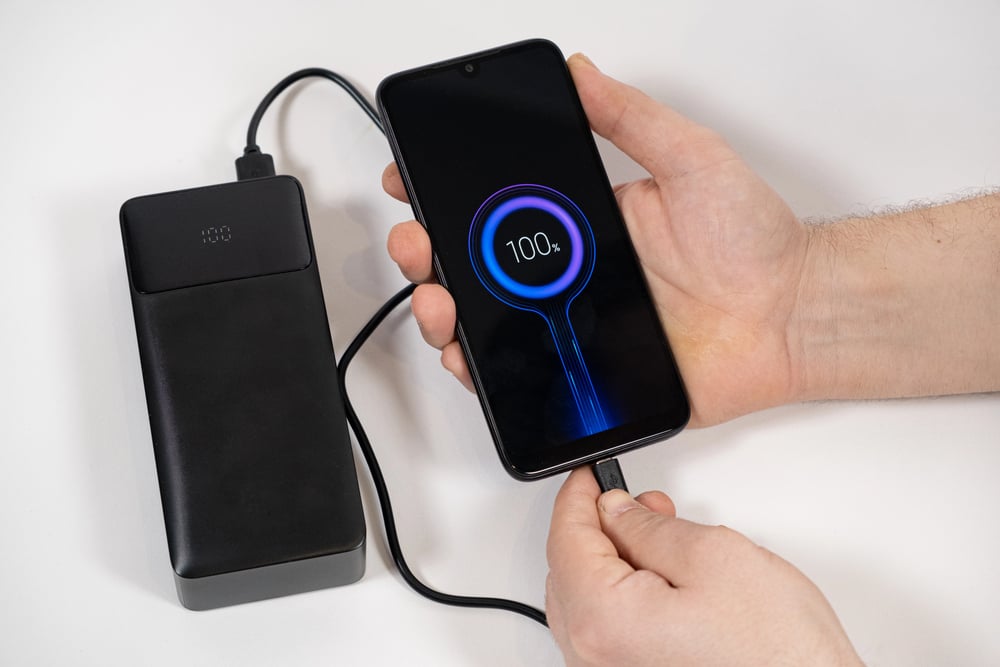
Some newer Android devices, along with certain laptops, include a feature that stops charging early. Instead of topping off completely, it halts around 80 or 85 percent.
This helps slow down battery aging because keeping lithium cells full too often causes extra stress over time. When gadgets stay connected all day, using this option means the power cell lasts longer before weakening.
Apple handles this differently – its iPhones adjust charging patterns behind the scenes. But on many Androids, users pick their own limits manually.
Find My Network Works Without Internet

Off the grid, Apple’s Find My still keeps watch. A misplaced AirPod, phone, or laptop might be shut down or far from service – yet nearby Apple gadgets quietly pass along its spot.
Information slips through unseen, scrambled into code before it moves. The crowd of devices takes part without revealing themselves; everything runs under the surface.
That quiet trail lets someone locate a forgotten item blocks away, maybe even across town after several days. Google offers something close, tucked inside its own tracking web for Android gear.
Password-Protected Notes
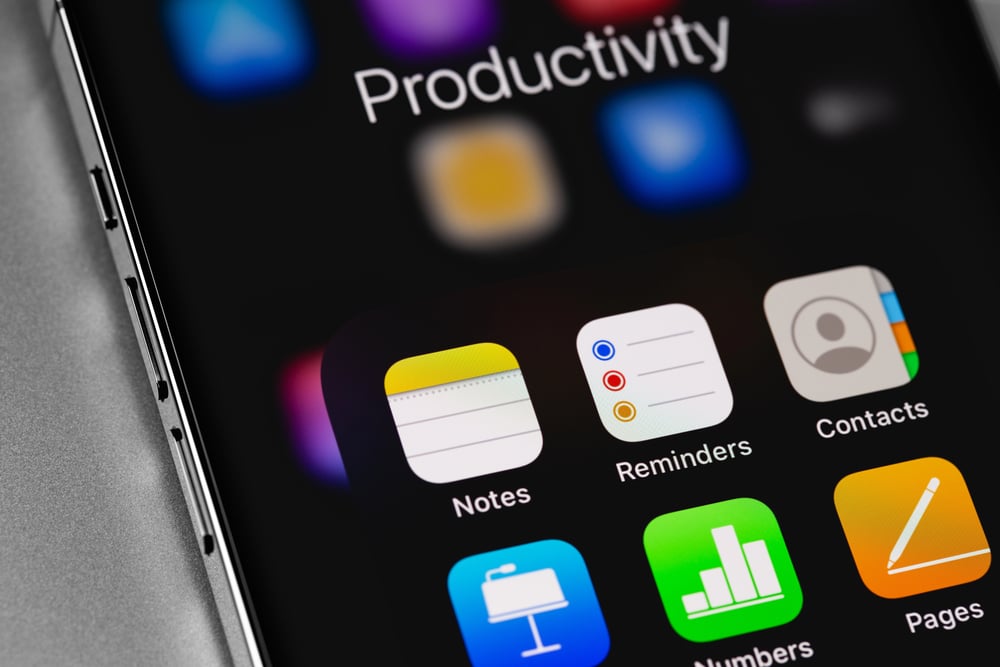
A single note can be secured using Face ID, Touch ID, or its own password inside the iPhone Notes app. Sensitive data like account digits, personal IDs, health records fit well here – no extra software required.
Press and hold a note in your list; suddenly, a choice to lock shows up right there in the menu. Most users overlook this trick until the moment arrives when privacy really matters.
The Thing About Notifications

Most phones hide detailed ways to manage alerts, settings many users never touch. Silent delivery for specific apps means they show up without noise or pop-ups on Apple devices.
Grouping messages either by program or conversation thread keeps things tidy. Interruptions drop further when non-urgent updates bundle into one or two daily digests.
Odd how the thing folks need most – taming their device distractions – gets almost zero attention when it comes to setup.
Already On Your Phone
Most gadgets sit around doing only half their job without anyone noticing. Features often show up quietly, slipped into updates while nobody watches.
A tweak here, hidden inside menus, left unexplained by guides. What your phone or tablet could handle might surprise you if you ever looked closer.
Silence follows every upgrade that changes everything yet says nothing at all. A single morning spent clicking through menus might shift your habits more than any purchase ever could.
More from Go2Tutors!

- The Romanov Crown Jewels and Their Tragic Fate
- 13 Historical Mysteries That Science Still Can’t Solve
- Famous Hoaxes That Fooled the World for Years
- 15 Child Stars with Tragic Adult Lives
- 16 Famous Jewelry Pieces in History
Like Go2Tutors’s content? Follow us on MSN.