16 Features On Your IPhone You Probably Didn’t Know
Hidden deep in your iPhone lives more than just apps for talking or tapping. Most folks tap the screen for messages, phone chats, maybe social feeds – routine stuff.
Yet tucked away behind quiet menus sit clever tricks few ever try. These aren’t flashy extras – they shape how you move through tasks daily.
Some shortcuts save seconds, others reshape entire habits without drama.
Peek under the surface, you might spot features hiding in plain sight on your iPhone. Not every trick gets shared online.
Some of them save time without asking for attention. Hidden tools often feel like secrets passed quietly between friends.
Few mention how smoothly they fit into daily routines. These quiet functions just work when needed.
Most users never dig deep enough to find them. Yet there they are, ready whenever someone looks closely.
Back Tap
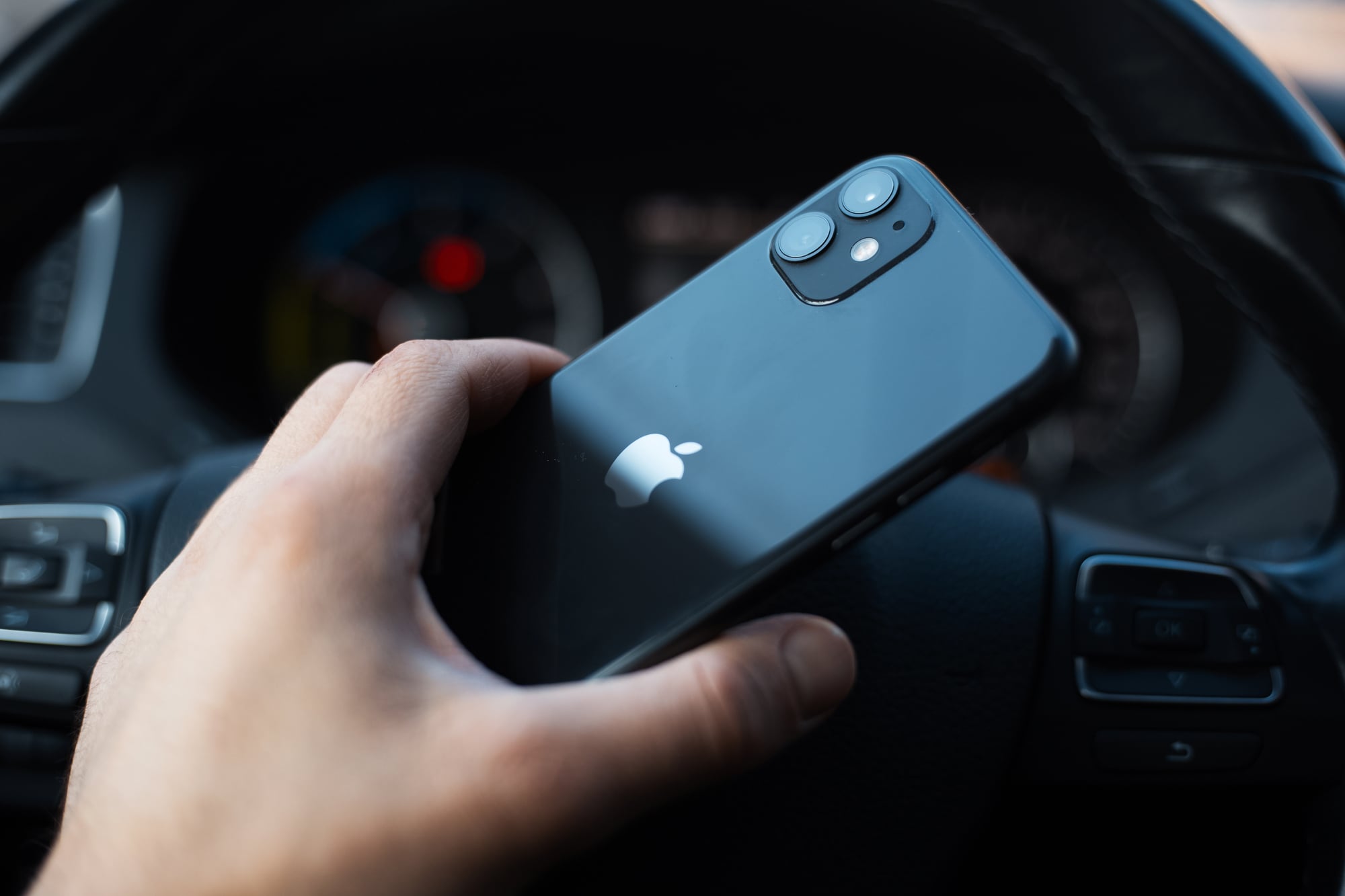
Tap the back of your iPhone a couple times, maybe three, depending on how you set it up. Head into Settings, swipe through Accessibility, find Touch, then pick what happens when you knock gently on the device.
Snap a photo, grab a screenshot, launch the camera – whatever fits how you move through the day. At first it might seem odd, doing something so quiet and small.
Yet soon that little thump-thump turns familiar, almost natural, part of your rhythm without much thought.
Drag And Drop Text
Sliding a word instead of copying works quicker than most expect. Tap once, keep your finger down, let the selection appear.
Move it anywhere by dragging – no extra steps needed. Try shifting pieces between messages or notes like this.
One motion drops text right where you need it. Less switching happens when fingers do the work directly.
Custom App Icons
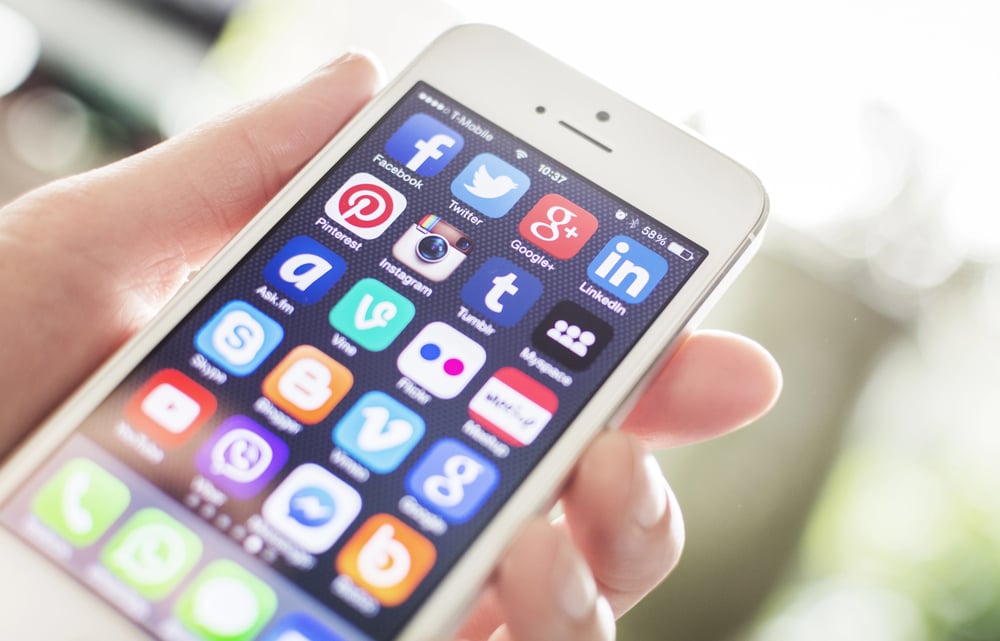
A fresh look for your app icons? Try swapping them out using just what’s already on your device.
The Shortcuts tool lets you pick a photo and link it to any app. Name it something different if you feel like it.
Slide that updated version right onto your home screen. Your phone gets a personal touch – quietly, easily.
Looks matter when they’re yours.
Hidden Trackpad

Trying to type and position the cursor on a tiny display makes phone use annoying more often than not. Slide your finger across the spacebar when held down, then watch the keys vanish into a surface for guiding the blinking line exactly where needed.
This trick slips under the radar but sticks around as essential after you’ve tried it once.
Screen Distance
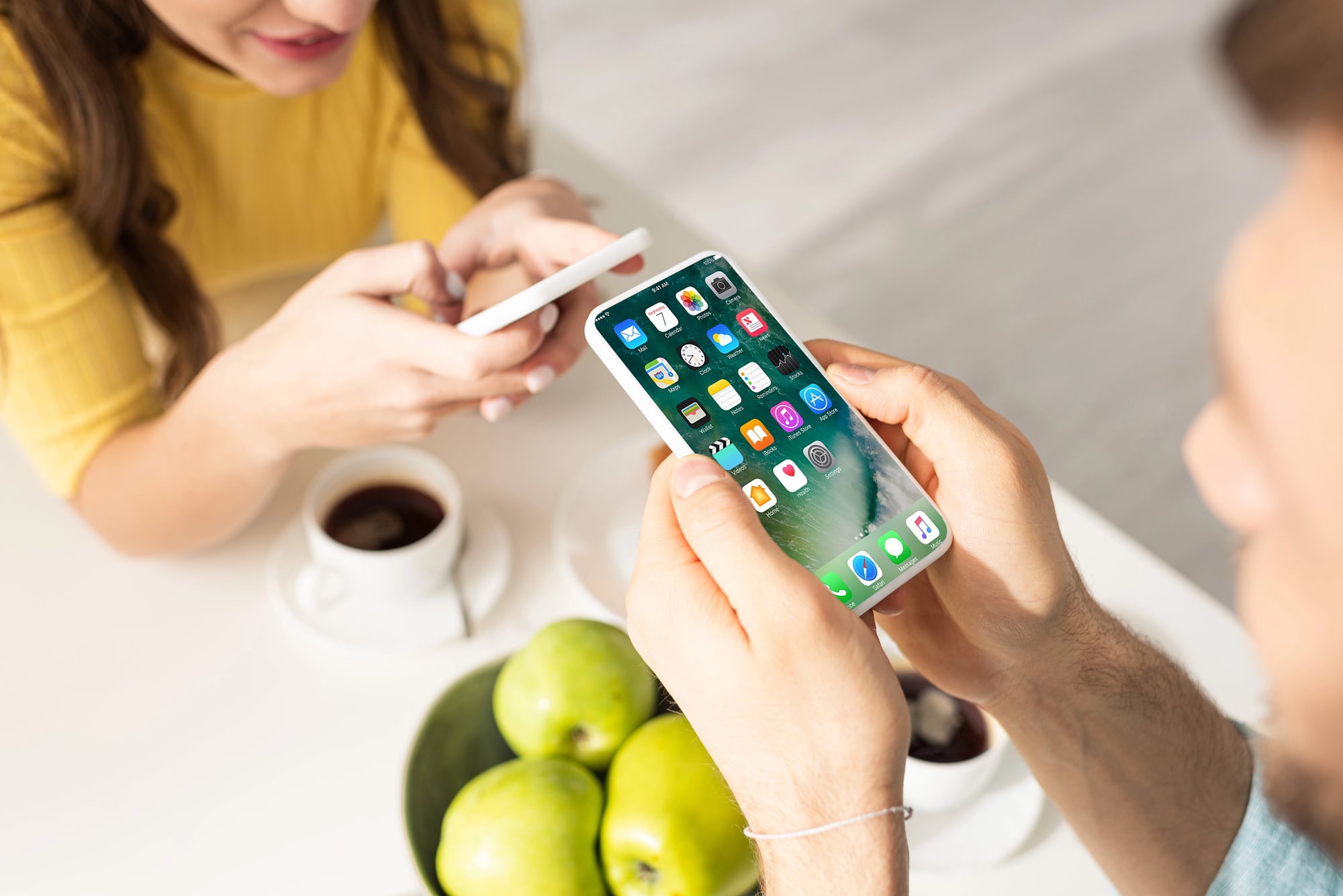
Up close, staring at a screen for hours strains the eyes – children feel this most. Inside Settings, tucked under Screen Time, Apple built something small yet smart: a nudge that notices when faces are too near.
The front camera watches quietly, then speaks up if the device creeps too close. Not flashy, just useful.
A soft alert pulls you back before tension builds behind the eyes.
Announce Notifications
When your hands are full, or earbuds cover your ears, notifications get spoken by Siri. Head into Settings – Siri and Search comes next – tap Announce Notifications to switch it on.
Pick the apps that speak up; others stay silent. While moving, stirring something hot, or behind the wheel, listening beats looking at the screen.
Silence stays broken only by what matters.
Reachability

When you hold bigger iPhones, tapping things with just one hand feels clumsy at times. Slide your finger down along the bottom rim, suddenly the whole display scoots downward within easy reach.
This trick does not work unless you flip the switch yourself for certain devices. Peek inside Settings first, dive into Accessibility, tap Touch – make certain it is active there.
Offline Maps

Most folks aren’t aware Apple Maps has offline downloads for certain places. Try tapping the location name after searching a city – it shows up at the screen’s base.
The feature appears once you browse far enough down. Without signal, this trick keeps navigation running.
Travelers find it useful where cell service fades. Downloading ahead saves time later on.
Background Sounds

A soft hum of rain or rolling waves can run behind everything you do on your phone. Look inside Settings, tap Accessibility, go to Audio and Visual, choose Background Sounds.
While working, studying, or just sitting still, it keeps things steady. Busy streets or loud rooms feel quieter once this is turned on.
Live Voicemail
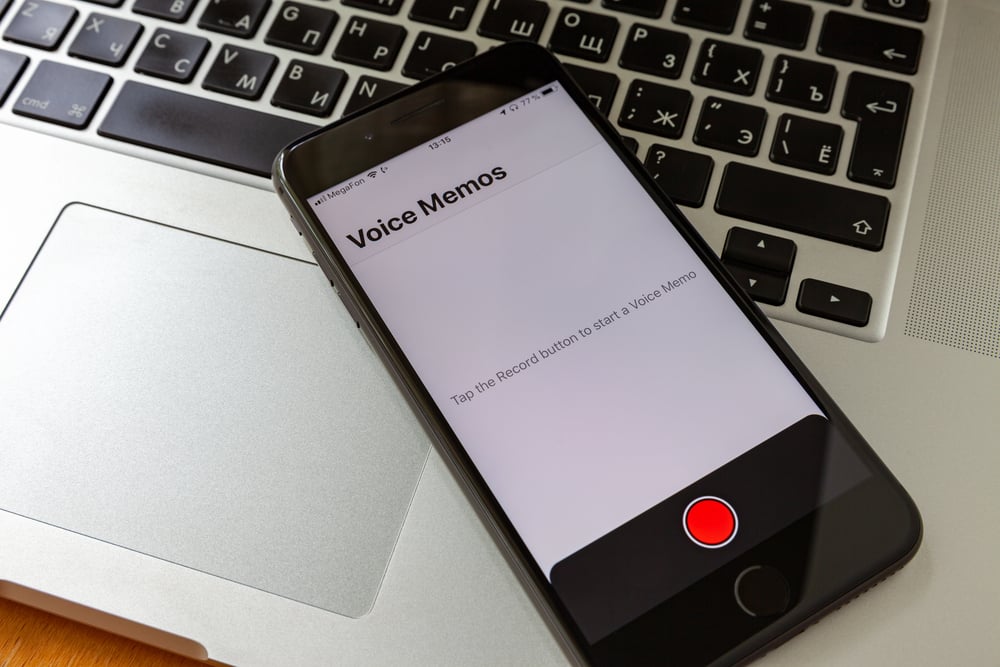
Mid-sentence, your iPhone begins showing spoken words as text during a live voicemail. As the caller talks, their voice turns into readable lines right before they stop.
One glance tells you if it’s worth answering now or skipping later. Only devices updated to iOS 17 – or newer – handle this trick.
The moment speech flows, letters appear.
Stolen Device Protection
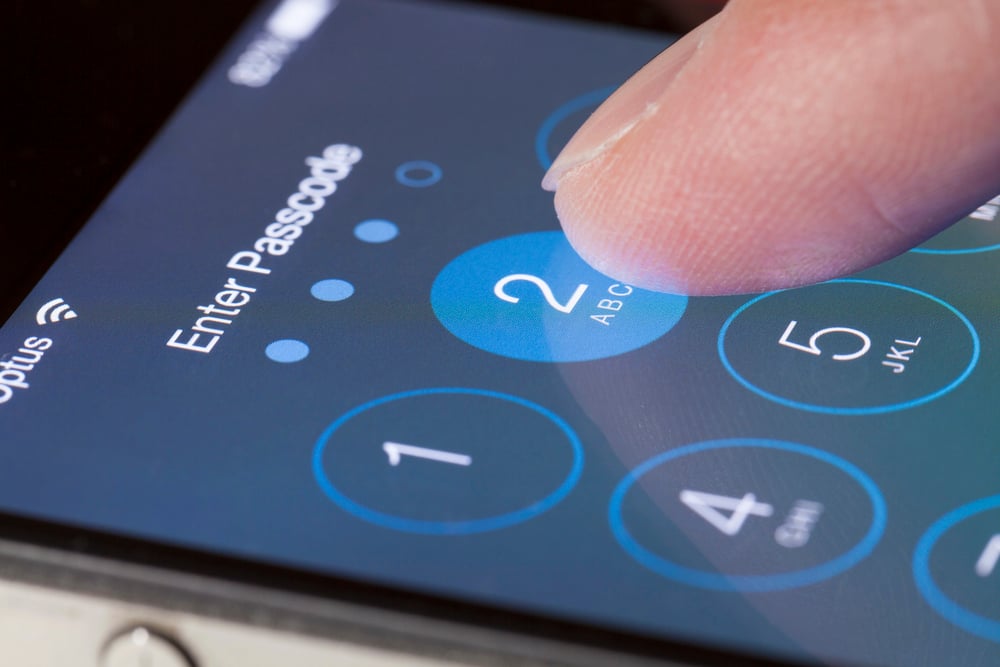
When your phone is stolen, this setting helps block unauthorized changes to your Apple ID password or disabling Find My. Head into Settings, tap Face ID and Passcode, then pick Stolen Device Protection to enable it.
Moving around outside usual spots? Sensitive tasks now ask for Face ID or Touch ID. For added safety, authentication steps activate only when you are not near places recognized by the system.
Guided Access

Start here if you want a kid – or anyone really – stuck inside just one app on your phone. Lock things down tight using Guided Access, which freezes everything outside that app.
Parts of the screen? You can block those too, so they won’t get poked by accident. Head into Settings first, then tap through to Accessibility, find Guided Access, flip the switch.
From now on, three quick presses on the side button will lock it each time.
Shake To Undo
Got a typo but hate poking that small undo icon? Try wobbling your device slightly.
A question pops up – reverse what you just did? This trick fits nearly every place you type, inside countless apps.
One little thing, almost invisible, yet it quietly cuts down irritation more than expected.
Focus Filters

Not everyone realizes how deep Focus settings go – peek beneath the surface and there’s filtering tucked away. When a particular Focus runs, it can reshape what appears in certain apps.
Try Work mode hiding personal emails while spotlighting only job-related messages. Head into Settings first.
Slide into Focus next. Pick one of the modes waiting there.
Tap Add Filter near the bottom. That hidden switch changes who gets through.
Text Size Per App
Your phone sets text size globally by default, yet certain apps allow their own adjustments. Try opening one specific app first before tweaking anything else.
Navigate into Settings once inside that app, then tap Display and Brightness – keep the app running behind the scenes. Slide the Text Size bar there instead of elsewhere.
That way, your notes might show bigger letters while the rest stays normal. One thing leads to another: different screens can look how you need them.
Translate On Screen
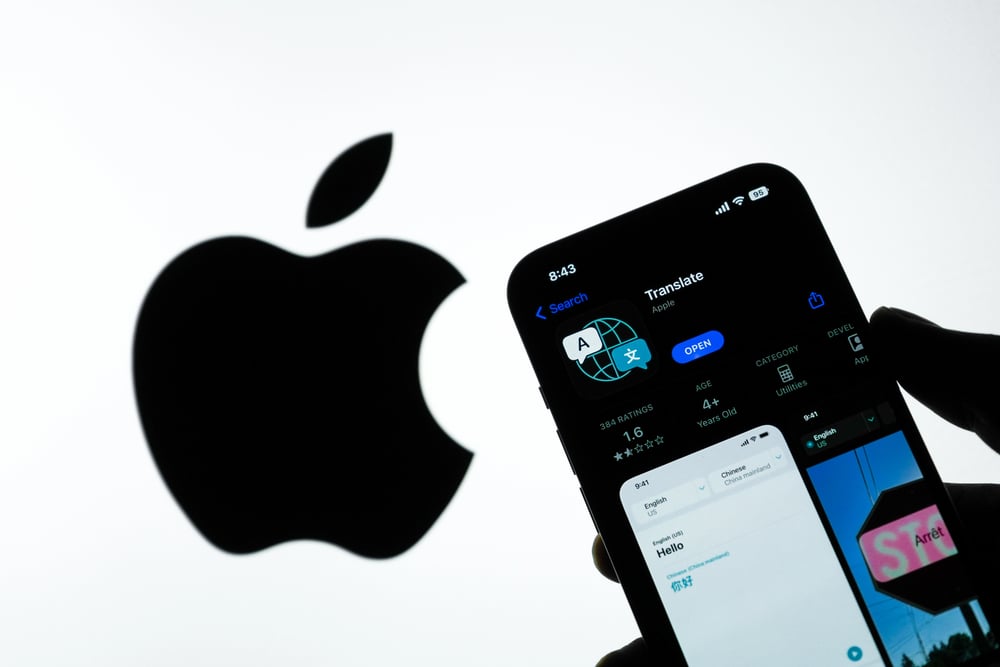
The iPhone has a built-in Translate app, but there is also a feature that lets you translate text right on your screen without opening any app. Highlight any text, tap the arrow that appears in the menu, and look for the ‘Translate’ option.
It works in messages, browsers, and even PDFs, making it very useful when reading content in another language.
The Phone You Have Always Had

The iPhone sitting in your pocket right now is more capable than most people ever find out. These features did not arrive with the latest model; several of them have been quietly sitting in older iOS versions, waiting to be discovered.
Exploring your own settings is one of the best ways to get more value from a device you already paid for, and you do not need to buy anything new to do it.
More from Go2Tutors!

- The Romanov Crown Jewels and Their Tragic Fate
- 13 Historical Mysteries That Science Still Can’t Solve
- Famous Hoaxes That Fooled the World for Years
- 15 Child Stars with Tragic Adult Lives
- 16 Famous Jewelry Pieces in History
Like Go2Tutors’s content? Follow us on MSN.