Google Maps Secrets You Can Find Today
Most people use Google Maps to get from point A to point B. They type in an address, follow the blue line, and call it done.
But the app holds so much more than basic directions. Hidden features sit right under the surface, waiting for someone to stumble across them.
Some of these tricks save time. Others just make navigating more interesting.
And a few of them feel like cheats that Google forgot to hide away. You don’t need any special skills to access them.
Just a willingness to tap around and see what happens.
Street View Time Travel

Google Maps remembers what streets looked like years ago. Click on Street View, then look for the clock icon in the upper left corner.
You can scroll back through different dates to see how neighborhoods have changed.
Watch buildings go up or come down. See how that empty lot turned into a shopping center.
Or just check out what your house looked like before the new paint job. Some locations have images going back to 2007.
This works best in cities where Google’s cars drive frequently. Rural areas won’t have as many dates to choose from.
But when the feature works, it’s like having a time machine for streets.
Offline Maps for Dead Zones
Download maps before you head into areas with spotty service. Search for a location, tap on the name at the bottom, then select “Download” from the menu.
The app saves the map to your phone.
These offline maps include turn-by-turn directions. You can search for places and get basic information without any data connection.
The maps even show traffic in real-time once you reconnect to the internet.
Each downloaded area expires after about a year. But you can update them manually or set the app to refresh automatically on WiFi.
This feature has saved countless road trips through mountain passes and remote highways.
Hidden Car Icons
Your navigation icon doesn’t have to be a blue dot. During navigation, tap the arrow that represents your location.
A menu appears with different vehicle options.You can pick a red sedan, a green SUV, or even a yellow pickup truck. The choices change based on holidays and special events.
Around St. Patrick’s Day, a green-themed car appears. During Halloween, you might spot a themed icon.
These don’t affect navigation at all. They just make following your route more fun.
And if you’re sharing your location with someone, they’ll see your custom car moving on their map too.
Measure Distances Between Points
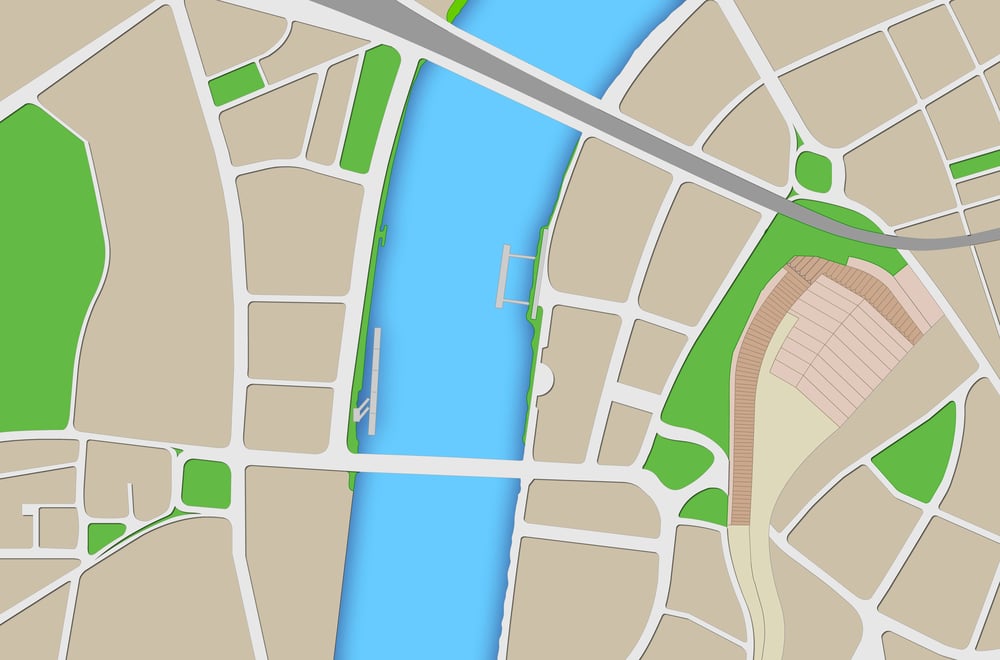
Right-click anywhere on the map and select “Measure distance.” Click additional points to create a path, and Google Maps calculates the total length.
This works for straight lines or winding routes. You can measure how far you’d walk across a park, check the perimeter of a property, or figure out the distance between two cities as the crow flies.
Each new point you add extends the measurement. Click “Clear measurement” to start over.
The tool shows distances in both miles and kilometers.
Avoid Highways and Tolls
Open your route settings before starting navigation. Tap the three dots in the upper right corner, then choose “Route options.”
You’ll find checkboxes for avoiding highways, tolls, and ferries.Some routes become completely different when you skip the highway.
You might add time to your trip, but you’ll drive through neighborhoods and towns you’d otherwise miss.The scenery improves and stress levels drop.
You can save these preferences for all future trips or adjust them each time. The app remembers your choices and applies them automatically to new routes.
See Multiple Destinations at Once
Search for something generic like “coffee shops” or “gas stations.” Google Maps shows every matching location nearby.
But here’s the trick: zoom out and the map keeps populating with more results.
Keep zooming out and you’ll see coffee shops across entire states. This helps when you’re planning a long drive and want to know where your options are along the route.
Click on any pin to see details. Add stops to your route directly from this view.
No need to search repeatedly as you drive. Everything’s already marked on the map.
Save Parking Locations
After you park, tap the blue dot that shows your location. Select “Save your parking.”
The app drops a pin and starts a timer.You can add notes about which floor or section you’re in.
Set a reminder for when parking expires.Add a photo of your spot or nearby landmarks.
When you return, Google Maps shows you exactly where you parked and how to walk back to your car. The feature works in crowded lots where every row looks the same.
Create Custom Lists
The “Saved” tab lets you organize places into lists. Create one for favorite restaurants, another for weekend getaway spots, or a list of places you want to visit.
Share these lists with other people. When you’re planning a trip with friends, everyone can add suggestions to the same list.
The list updates in real-time as people contribute ideas.Lists sync across devices.
Add a place on your computer and it appears on your phone immediately.You can also make lists public and share them with anyone.
Check Business Wait Times
Many locations show how busy they are throughout the day. Click on a restaurant or store to see a graph of typical activity levels.
The data comes from other people who have Google’s location services turned on.The graph shows when places are most crowded and when they’re usually quiet.
Plan your visit for off-peak times to avoid lines.Some locations also show how long people typically spend there.
This feature works best for popular spots with lots of foot traffic. Smaller businesses might not have enough data to generate accurate graphs.
But for big stores and chain restaurants, the information is usually reliable.
Share Real-Time Location
Tap your profile picture, then select “Location sharing.” Choose how long you want to share and pick who can see where you are.
They’ll watch your location update in real-time on their own maps.This beats texting “I’m almost there” every few minutes.
The other person can see your progress without you touching your phone.They know when you’re stuck in traffic or taking a detour.
You can stop sharing at any time. Set it to expire automatically after a certain number of hours.
Or keep it active indefinitely for people you share location with regularly.
Find Altitude and Coordinates
Right-click on any point on the map (or long-press on mobile) and select “What’s here?” A card appears at the bottom showing the exact coordinates and elevation.
This helps when you need to report an exact location. Emergency services can use coordinates when addresses don’t exist or aren’t clear.
Hikers use elevation data to plan routes.The coordinates appear in several formats.
Copy them and paste into other mapping apps or GPS devices.The elevation shows in both feet and meters.
See Speed Limits While Driving
During navigation, many areas display the speed limit right on the screen. A small sign appears in the corner showing the current limit for the road you’re on.
The app doesn’t alert you if you’re speeding. It just shows the information.
But having that reminder helps, especially on roads where limits change frequently.This feature isn’t available everywhere yet.
Google gradually rolls it out to more regions.But where it works, it saves you from constantly watching for speed limit signs.
Download for Future Reference
On your computer, you can print or save detailed directions as a PDF. After creating a route, click the menu icon and select “Print.”
The document includes maps, turn-by-turn instructions, and estimated travel time.This works great when you know you’ll be in areas without phone service.
Print the directions and keep them in your car.You’ll have a backup if your phone dies or loses signal.
The PDF also shows alternate routes. If construction blocks your main path, you’ll have other options already mapped out.
Explore Nearby Attractions
When viewing any location, scroll down to see “Nearby” suggestions. Google Maps shows restaurants, shops, and attractions within walking distance.
These aren’t just the closest options—they’re places that match the vibe of where you’re looking.Search a museum and nearby suggestions lean toward cultural sites.
Look at a hiking trail and you’ll see other outdoor spots.The app understands context and adjusts recommendations accordingly.
This beats opening a separate search every time you want to know what’s around. Everything appears on one screen, already organized by category.
Tap any suggestion to get directions or more details.
Watch the World Move
Nowhere stays frozen – scenes shift when rain arrives or daylight fades. Big hubs and famous spots pull you into living moments, not just static shots.
Picture waves glowing at dusk, flakes drifting through alpine streets, pink petals floating down city lanes.From mountaintops to shorelines, sharp images arrive through well-placed cameras.
Updated often, they show what things really look like right now.Before making the trip, glance at snow-covered slopes.
Crowds on sand? A quick peek tells you how busy it might be.Some spots won’t show this at all.
Yet if it’s there, the view symbol changes its look.Spot hints such as “Live View” or richer image settings instead.
Finding What Sticks
Still, some Google Maps tricks stick around even as new ones appear. Hidden under menus or needing a long press, they stay helpful.
The design stays clean, never cluttered by extra buttons. Few users discover these tools on their own.
Useful things often sit just out of sight.Now it clicks – directions make sense. Step by step, paths unfold even when signals fade.
Moving across town feels different once maps stop being just routes. Instead of chasing dots, you start seeing places like a local.
Here’s something cool. Your phone has these tools built right in.
No new downloads required. All it takes is looking around, tapping a bit more.
More from Go2Tutors!

- The Romanov Crown Jewels and Their Tragic Fate
- 13 Historical Mysteries That Science Still Can’t Solve
- Famous Hoaxes That Fooled the World for Years
- 15 Child Stars with Tragic Adult Lives
- 16 Famous Jewelry Pieces in History
Like Go2Tutors’s content? Follow us on MSN.