30 Most Useful Computer Shortcuts
It might surprise you how much time gets lost just navigating menus. Every little detour to a toolbar piles on, turning brief pauses into real delays over hours.
At first, memorizing keys seems like a chore – slow, maybe even pointless. Yet after practice, it clicks; suddenly doing things the old way feels strange.
Most apps and systems support these tricks. A few shave off seconds.
Entirely different results come from others.
Copy and Paste

Ctrl+C and Ctrl+V on Windows, or Command+C and Command+V on Mac. These two shortcuts probably save more time than any others combined.
You use them dozens of times daily without thinking about it. They work in almost every program, from word processors to web browsers to design software.
Cut

Ctrl+X (or Command+X) removes selected text or files and stores them temporarily. Think of it as copy with deletion.
You cut something from one place and paste it somewhere else. Simple, but you use it constantly when reorganizing documents or moving files around.
Undo

Ctrl+Z (Command+Z on Mac) reverses your last action. Made a mistake?
Deleted the wrong paragraph? Moved something accidentally?
Just hit undo. Most programs let you undo multiple times.
Stepping backward through your recent changes until you reach the point before things went wrong.
Redo

Ctrl+Y on Windows, or Command+Shift+Z on Mac. Redo reverses an undo.
You’ll use this when you undo too many times or when you change your mind about a change you reversed. It moves you forward through the same actions that undo moved you backward through.
Select All

Ctrl+A (Command+A) highlights everything in your current document or folder. You need to copy an entire document?
Select all, then copy. Want to delete everything in a text box?
Select all, then delete. It beats clicking and dragging, especially in long documents.
Find

Ctrl+F (Command+F) opens a search box in almost any program. Looking for a specific word in a long document?
Need to find an email from last month? Press Ctrl+F, type what you’re looking for, and jump straight to it.
You’ll use this constantly once you remember it exists.
Save

Ctrl+S (Command+S) saves your current work. Get in the habit of hitting this every few minutes.
Programs crash. Power goes out.
Computers freeze. Saving frequently means you lose less work when something goes wrong.
Make this shortcut automatic.
Close Window

Ctrl+W (Command+W) closes the current tab or window. Finished reading an article?
Close it without reaching for the mouse. Done with a document?
Close it with a keystroke. Works in browsers, file explorers, and most applications.
New Tab

Ctrl+T (Command+T) opens a fresh browser tab instantly. You don’t need to click the tiny plus button at the top of your browser.
Just hit Ctrl+T and start typing your next search or URL. Browser navigation speeds up considerably once you start using this.
Reopen Closed Tab

Ctrl+Shift+T (Command+Shift+T) brings back the tab you just closed. Accidentally closed something important?
This shortcut retrieves it immediately. Works for multiple tabs too.
Keep pressing it to reopen tabs in reverse order of how you closed them.
Switch Between Applications

Alt+Tab on Windows (Command+Tab on Mac) lets you jump between open programs. Hold Alt and tap Tab to cycle through your applications.
Release both keys when you reach the one you want. Faster than clicking around on the taskbar.
Switch Between Windows

Alt+Tab switches applications, but what about switching between multiple windows of the same program? On Windows, use Alt+Grave (the key above Tab).
On Mac, use Command+Grave. Helpful when you have several documents or browser windows open at once.
Lock Screen

Windows+L on Windows, or Command+Control+Q on Mac. Walk away from your desk?
Lock your screen so nobody can access your work. Takes half a second and saves you from security risks or pranks from coworkers.
Spotlight Search

Command+Space on Mac opens Spotlight, which finds files, launches apps, does calculations, and answers questions. Type a few letters of an app name and press Enter to launch it.
Much faster than hunting through folders or application lists. Windows has something similar with Windows+S, which opens the search bar.
Same concept—type what you need and it appears.
Screenshot

Windows+Shift+S on Windows lets you select an area to capture. On Mac, Command+Shift+4 does the same thing.
Your cursor turns into crosshairs, you drag to select the area, and the screenshot copies to your clipboard. Useful for sharing error messages, designs, or funny conversations.
For full-screen captures, use PrtScn on Windows or Command+Shift+3 on Mac.
Task Manager

Ctrl+Shift+Esc opens Task Manager on Windows directly. Skip the Ctrl+Alt+Delete menu.
Task Manager shows what’s running, what’s frozen, and what’s hogging your resources. End unresponsive programs instantly.
Mac users press Command+Option+Esc for Force Quit Applications, which serves a similar purpose.
Refresh Page

F5 refreshes the current browser page. Ctrl+R (Command+R on Mac) does the same thing.
Website not loading correctly? Refresh it.
Waiting for new content to appear? Refresh.
Want to see updated information? Refresh.
For a hard refresh that ignores cached files, use Ctrl+F5 on Windows or Command+Shift+R on Mac.
Zoom In and Out

Ctrl+Plus zooms in. Ctrl+Minus zooms out.
Ctrl+0 resets to default size. Works in browsers, document editors, and image viewers.
Text too small to read? Zoom in.
Need to see more content at once? Zoom out.
These shortcuts work everywhere.
Bold, Italic, Underline

Ctrl+B makes text bold. Ctrl+I italicizes it.
Ctrl+U underlines it. These formatting shortcuts work in word processors, email clients, text editors, and messaging apps.
Command instead of Ctrl on Mac. Much faster than reaching for formatting buttons.
New Window

Ctrl+N (Command+N) opens a new window in most programs. New browser window, new document, new folder view.
The program determines what “new” means, but the shortcut stays consistent.
Address Bar

Ctrl+L (Command+L) jumps your cursor to the browser address bar. Start typing a new URL immediately.
No clicking required. Alt+D does the same thing in many browsers.
Tab Navigation

Ctrl+Tab moves to the next browser tab. Ctrl+Shift+Tab moves to the previous one.
Helpful when you have many tabs open and want to cycle through them quickly. On Mac, use Command+Option+Right Arrow and Left Arrow.
Minimize Window

Windows+D shows your desktop by minimizing everything. Windows+M minimizes the current window.
On Mac, Command+M minimizes the active window to the dock. Command+H hides the application entirely.
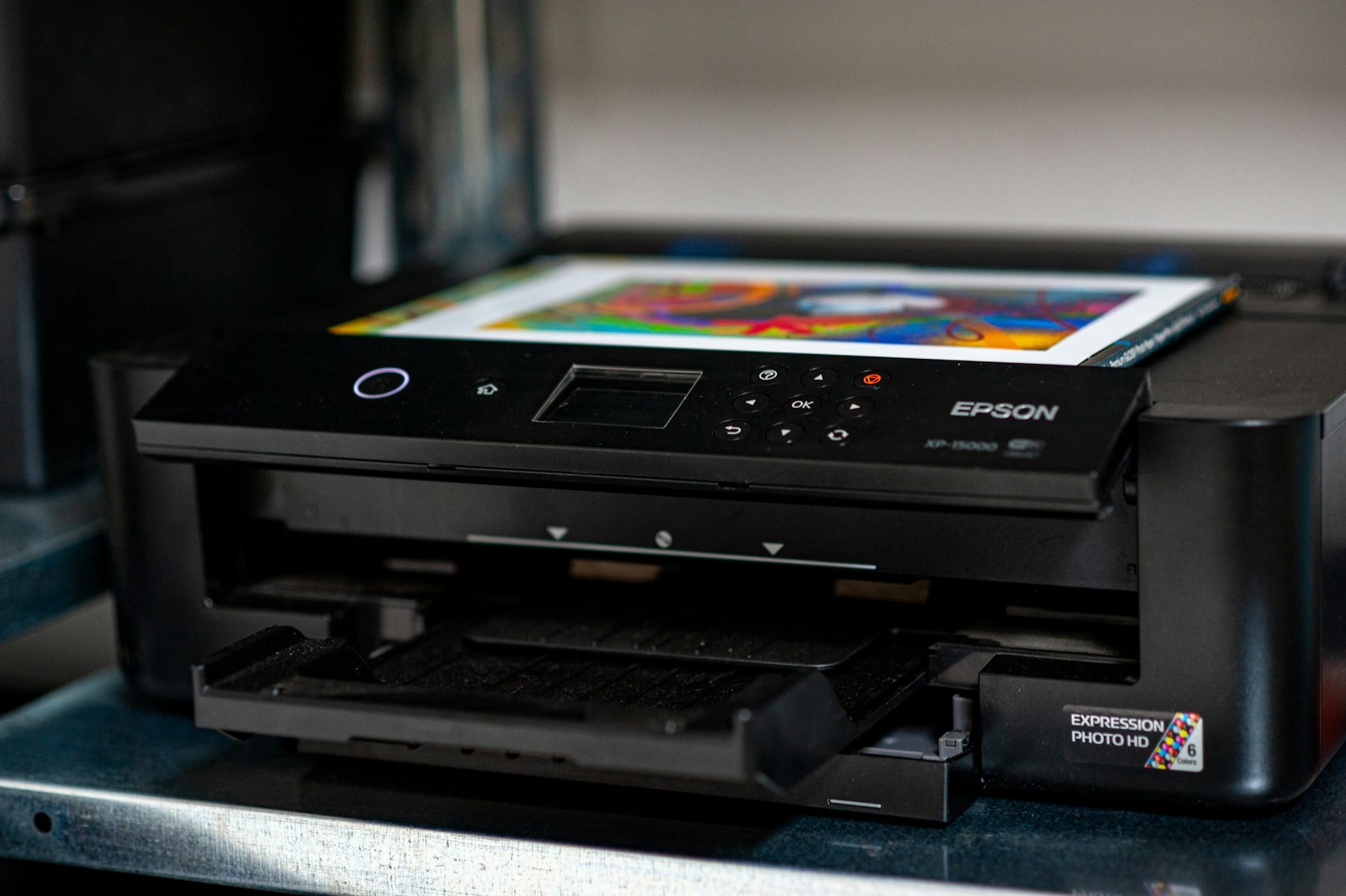
Ctrl+P (Command+P) opens the print dialog. You can also use this to save documents as PDFs in most modern systems.
The print dialog gives you that option.
Open File

Ctrl+O (Command+O) opens the file browser in most programs. Want to open a document?
Press Ctrl+O instead of navigating through menus. Faster and works consistently across different software.
Emoji Picker

Windows+Period opens the emoji picker on Windows. Command+Control+Space does it on Mac.
You get quick access to emojis, symbols, and special characters without hunting through character maps.
Duplicate Tab

Ctrl+K, then Ctrl+D duplicates the current browser tab in Chrome. Useful when you want to keep one tab as a reference while exploring links in another.
Other browsers have similar shortcuts, though they vary.
Select Word

Double-click selects a word. Triple-click selects a paragraph.
Not exactly keyboard shortcuts, but they count as shortcuts in the broader sense. Faster than clicking and dragging across text.
Show Desktop

Windows+D on Windows minimizes everything and shows your desktop. Press it again to restore your windows.
On Mac, F11 or Command+F3 works similarly, spreading out your windows so you can see what’s underneath.
Home and End Keys

Home jumps to the beginning of a line. End jumps to the end.
In documents, Ctrl+Home goes to the start of the entire document, and Ctrl+End goes to the finish. Simple but saves scrolling time.
The Rhythm of Efficiency

Moving fast isn’t the point. What shifts is your mindset around the machine.
Skip the constant hand trips to the mouse, suddenly rhythm takes over. Fingers live on keys, gaze never leaves pixels, actions once done by precision taps now happen without thought.
It takes time to learn every one of these. Start with just a couple that fit how you work.
Let those sink in through repetition. Once they feel natural, bring in others.
After some weeks, things shift quietly. The machine fades from something fiddly into part of your thinking.
More from Go2Tutors!

- The Romanov Crown Jewels and Their Tragic Fate
- 13 Historical Mysteries That Science Still Can’t Solve
- Famous Hoaxes That Fooled the World for Years
- 15 Child Stars with Tragic Adult Lives
- 16 Famous Jewelry Pieces in History
Like Go2Tutors’s content? Follow us on MSN.